- Translate
- Guides
- Mac
How to Translate Your Voice to English Text (Mac Guide)
Speak in any language and get English text where you type. Step-by-step: translate your voice to English with Google Translate or in one step on a Mac.
8 min read
You think faster in your own language, but the message needs to be in English. Here are two ways to translate your voice to English text: Google Translate's speech input in a browser, and a one-step method on a Mac. Google, Apple and Microsoft facts come from their official help pages, checked 28 Oct 2026.
Quick answer
There are two ways to translate voice to English on a computer:
- Google Translate by speech (any computer, in the browser). Pick your language and English, click the microphone, speak, then copy the English text and paste it where you need it.
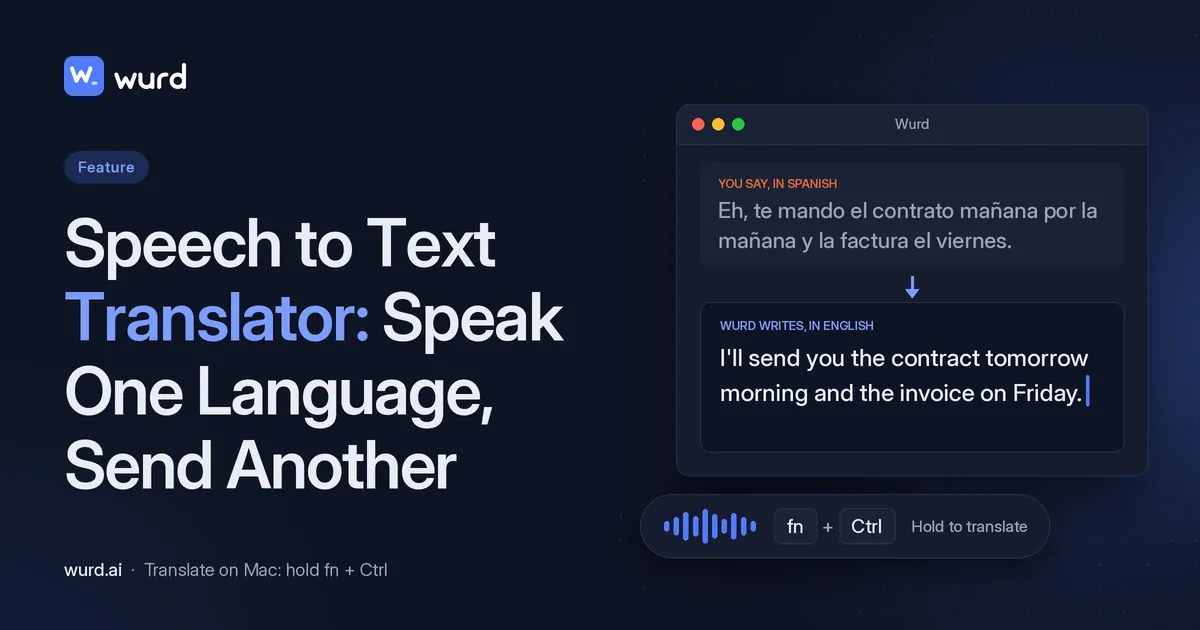
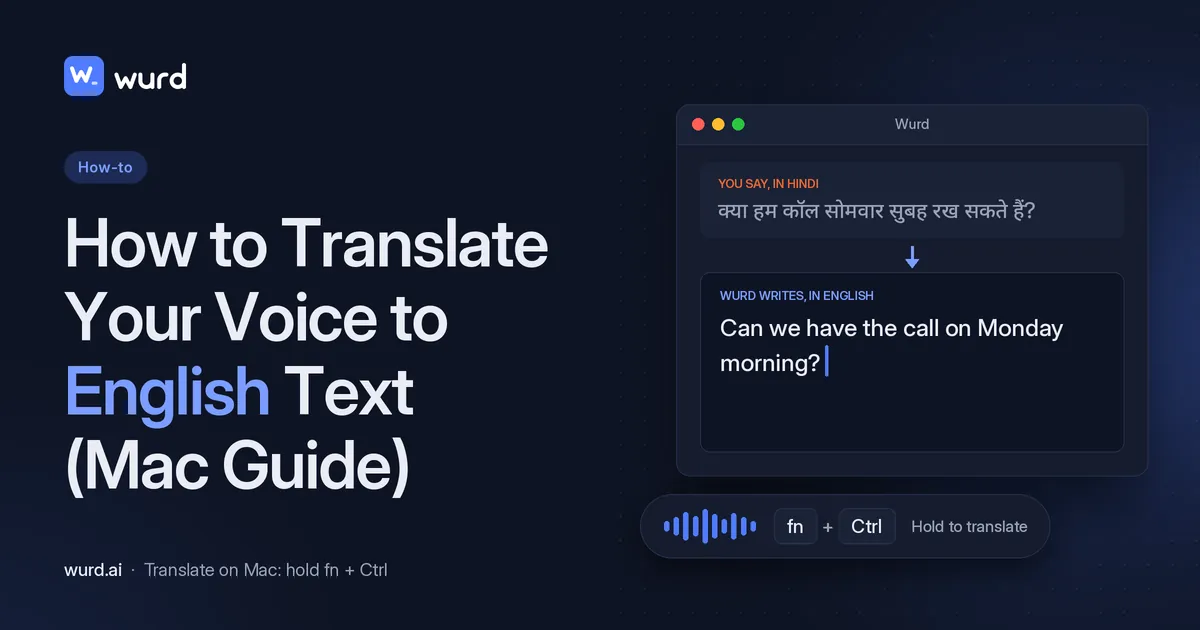
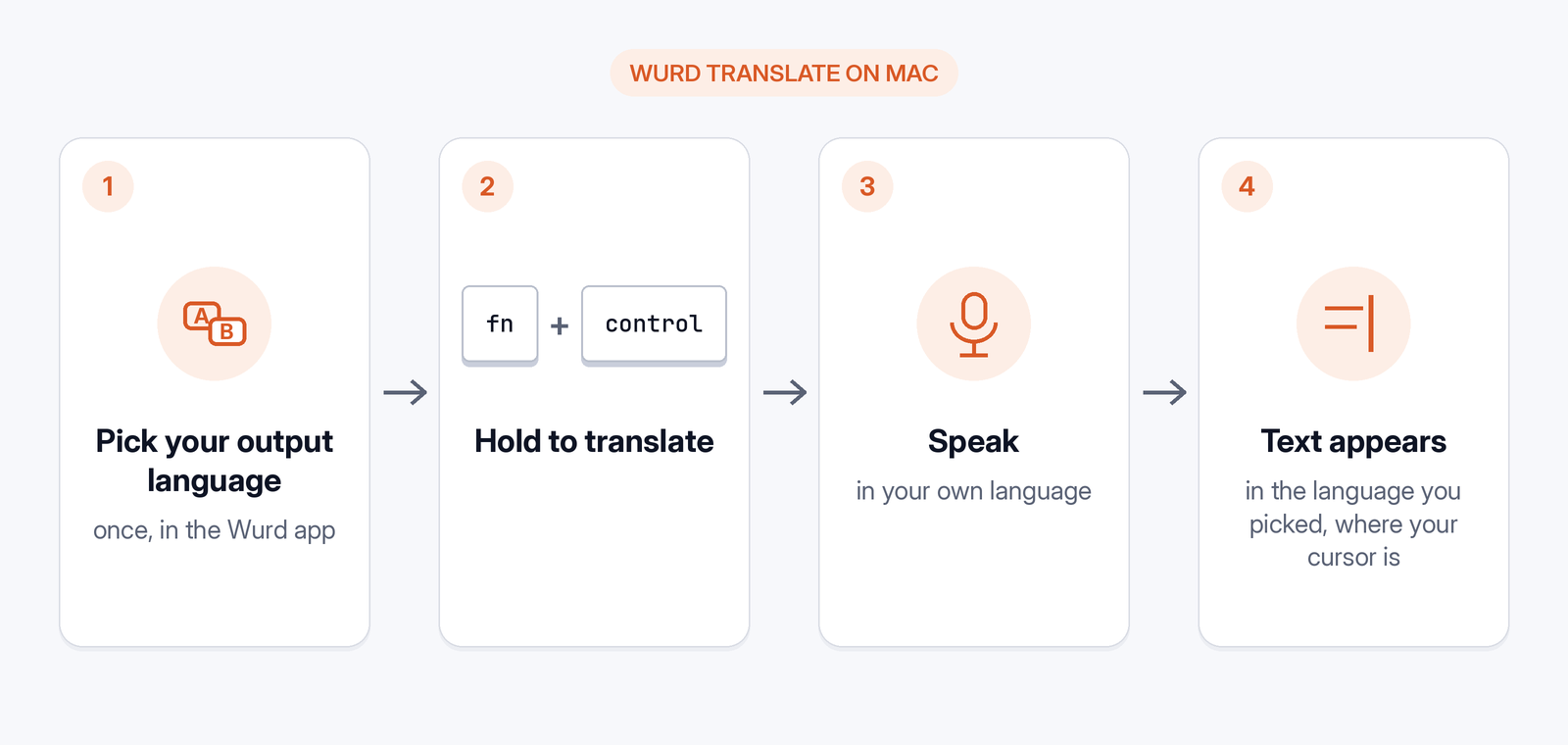
- Wurd Translate (one step, on a Mac). Click where you want to type, hold fn + ⌃ (Control), speak in your language, and let go. English text is pasted where your cursor is.
What "translate my voice to English" can mean
- Live speech to English text you'll send or keep. That's what this guide covers.
- Translating a recording. To translate audio to English from a file, such as a podcast or video, you need a file-based tool.
- Interpreting a live conversation between two people. That's another kind of tool.
If you search "voice translate to english", you probably want the first one; this guide shows how to translate speech to text you can paste into another app.
Method 1: Google Translate by speech on a computer
Google Help calls this "Translate by speech". You need a microphone. Google says you can translate with a microphone in Chrome, with "limited support in Safari and Edge", and that supported languages vary by browser (Google Translate Help, checked 28 Oct 2026).
- Give your browser permission to use your microphone.
- Go to Google Translate in your browser.
- Choose the languages to translate from and to, with English as the language to translate to. Google notes that translation with a microphone "won't automatically detect your language", so pick yours yourself.
- At the bottom, click the Microphone.
- Speak what you want to translate.
- When you're finished, click Stop.
- Copy the English text and paste it into your email, chat or document.
Limits: it runs in a separate browser tab, and you copy and paste each result into your app. That works well for a phrase, but it adds steps if you do it many times a day.
Can Mac Dictation or Windows voice typing do it?
Not in one step. Their official help pages don't describe a mode that turns speech straight into translated text.
- Mac: Apple's Dictation guide covers getting text in your dictation language and doesn't describe a translate option (Apple Support, checked 28 Oct 2026). Apple says that "when writing on your Mac, you can replace what you've written with a translation": select the text, Control-click it, choose Translate, then click Replace with Translation "to insert the translation and replace the original text". This works in different apps, "including some third-party apps", for supported languages (Apple Support, "Translate text on Mac", checked 28 Oct 2026; macOS feature availability, checked 28 Oct 2026). So on a Mac you can dictate, then translate as a second step.
- Windows: Microsoft's voice typing page (Windows key + H) doesn't describe a translate mode (Microsoft Support, checked 28 Oct 2026). Live Captions can translate audio into English, but only on Copilot+ PCs running Windows 11, version 24H2 and later, and as on-screen captions, not typed text (Microsoft Support, checked 28 Oct 2026).
Method 2: Speak any language, get English in one step on a Mac (Wurd Translate)
Wurd voice keyboard has two modes. Dictate writes what you say in the language you spoke. On a Mac, Wurd's Translate mode (fn + ⌃) "takes speech in any language and writes it in the language you pick". The translation is "written naturally rather than word for word. No translator tab, no copy and paste."
What you need
- A Mac with macOS 12 or later. Wurd lives in the menu bar. See Wurd for Mac.
- An internet connection. Wurd has no offline mode.
- A free Wurd account. Sign in with Google or Apple. Download Wurd only from wurd.ai.
Wurd is in beta. Translate is available on Mac, Windows, and on iPhone and Android, where the apps are in private beta. On a Mac, hold fn + Control. On Windows, hold Ctrl + Win + Alt.
Allow Microphone and Accessibility
Wurd needs two macOS permissions: Microphone and Accessibility.
- Open Wurd and sign in.
- When macOS asks, allow Microphone access.
- When macOS asks about Accessibility, turn on permission for Wurd.
If you skipped a prompt, open System Settings (System Preferences on older macOS), go to the privacy settings, then turn Wurd on under Microphone and Accessibility (Apple: microphone, Apple: accessibility apps, both checked 28 Oct 2026).
Choose English as the output language
On your Mac, choose the output language once in the app, and switch it from the keyboard any time. For this guide, choose English.
Hold fn + ⌃, speak, let go
- Click where you want the text: an email, a chat box, a document or a browser field.
- Hold fn + ⌃ (Control). On a Mac, this is Wurd's "Hold to speak in any language and paste it translated" shortcut.
- Speak naturally in your language, such as Spanish, Hindi, Arabic, Chinese, French or Bangla.
- Let go. English text is pasted where your cursor is, and your clipboard is put back the way it was.
You should see clean, punctuated English in the field you clicked. Wurd doesn't add ideas you didn't say; if it can't make out what you said, it writes nothing and tells you why.
Mixing languages? Use Dictate
Many people switch languages mid-sentence, for example Spanish with English. Wurd's Dictate mode (hold fn on a Mac) is built for that: it "keeps each word in the language you said it in".
Translate into other languages, not just English
Wurd translates from any language to English, or from any language to any language, on Mac, Windows, and the phone apps in private beta. Choose a different output language, and the same shortcut writes in that language: fn + ⌃ on a Mac, Ctrl + Win + Alt on Windows. See the Wurd FAQ on languages.

On Windows?
On Windows, hold Ctrl + Win + Alt to translate, the same way Method 2 works on a Mac. Method 1, Google Translate in the browser, is there if you don't want to install Wurd. Dictate on Windows is hold Ctrl + Win.
Common problems and fixes
- Nothing is pasted. Check that Wurd has both permissions and that your cursor is in a text field.
- Wurd doesn't hear you. Check its Microphone permission.
- The connection dropped. Wurd keeps a temporary copy of the recording on your Mac until the text arrives (24 hours at most), so press Retry; no need to speak again.
- You get your own words back with a warning. Wurd checks every number (prices, phone numbers, dates, order IDs) against what you said. If one doesn't match, you get your words back rather than a wrong figure.
- Wrong language. Check the output language, and make sure you held fn + ⌃, not just fn (fn alone is Dictate).
Tips for better voice-to-English results
- Speak in full sentences; the English comes out cleaner.
- Correct yourself out loud. Wurd keeps your "no, I mean…" corrections.
- Add names and jargon to your dictionary (100 words on Free; 2,000 on Pro, which is planned and not open) so Wurd spells them your way.
- Re-read important messages. Wurd can mishear or mistranslate, so read anything sensitive before sending.
- Questions stay questions. Wurd writes a dictated question down; it doesn't answer it.
Which method should you use?
Swipe sideways to see the rest of the table.
| Google Translate by speech | Wurd Translate | |
|---|---|---|
| Platform | Computer browser (Chrome; limited Safari and Edge) | Mac (macOS 12 or later) |
| Cost | See Google's current terms | Free plan: 2,000 words a week, Translate included |
| Steps | Pick languages, click mic, speak, stop, copy, paste | Hold fn + ⌃, speak, let go |
| Types into any app? | No, you copy and paste | Yes, anywhere you can paste |
| Internet needed? | Yes (web page) | Yes |
Wurd pricing: Pro is planned at $12/month. Paid plans aren't open, and prices may change before launch.
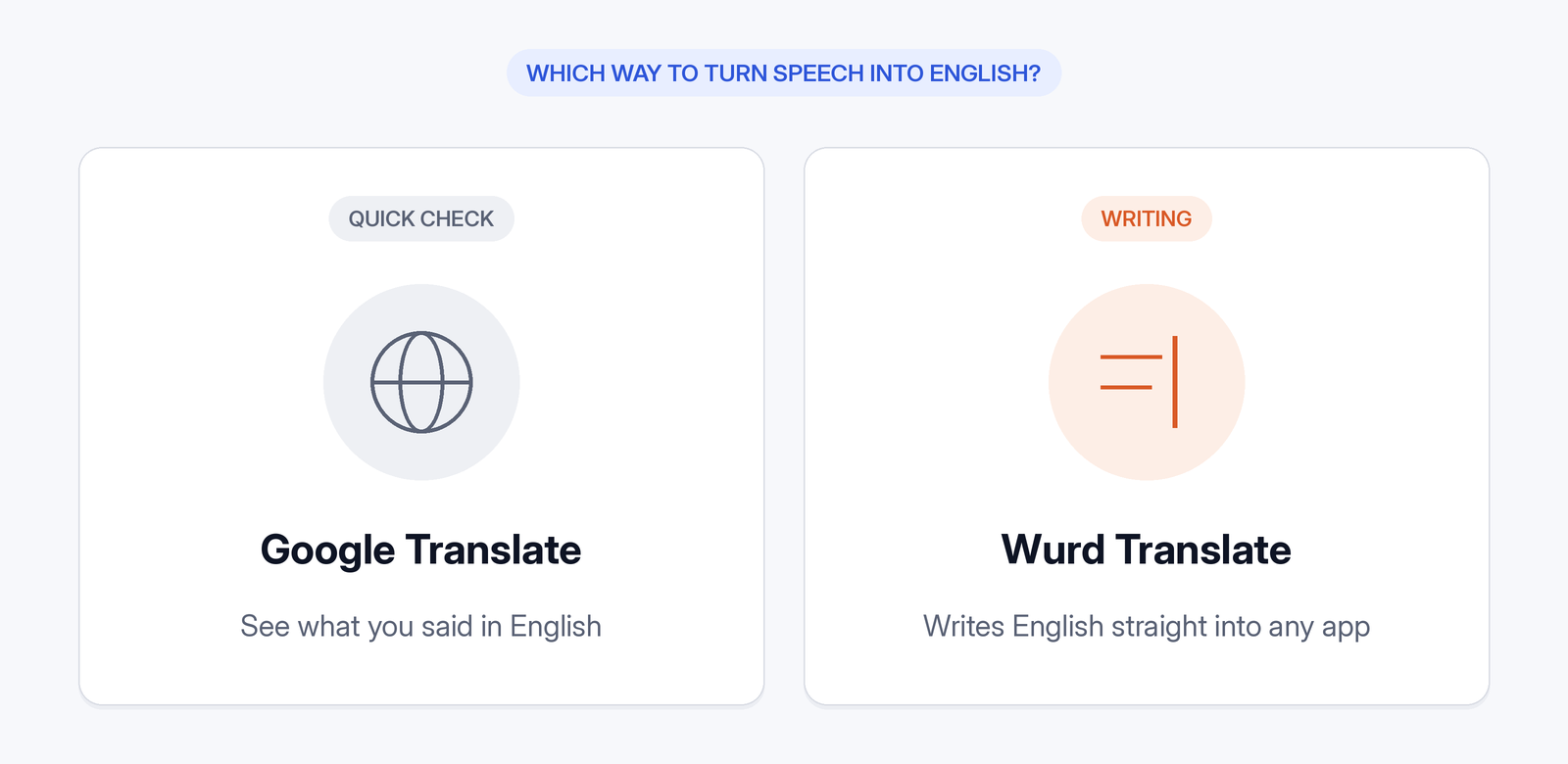
Use Google Translate for an occasional phrase on any computer, and Wurd if you translate your voice to English often on a Mac.
FAQ
How do I translate my voice to English for free? On a Mac, you can translate free on Wurd's Free plan: it includes Translate, with 2,000 words a week, and new accounts start with 14 days of Pro, no card needed. Pro is planned at $12/month; paid plans aren't open, and prices may change before launch. On any computer, Google Translate's speech input is another option.
Can I speak Spanish (or Hindi, Arabic…) and type English directly into an email or chat? On a Mac with Wurd, yes: hold fn + ⌃, and English is pasted anywhere you can paste, including email, chat, documents and browsers.
Does Mac Dictation or Windows voice typing translate? Not in one step. Their official help pages (checked 28 Oct 2026) don't describe a mode that turns speech straight into translated text.
Is voice translation word for word? On a Mac, Wurd Translate's output is "written naturally rather than word for word".
How do I translate voice to text in a language other than English? In Google Translate, pick a different target language. On a Mac with Wurd, pick a different output language.
Does it work offline? No, Wurd needs an internet connection.
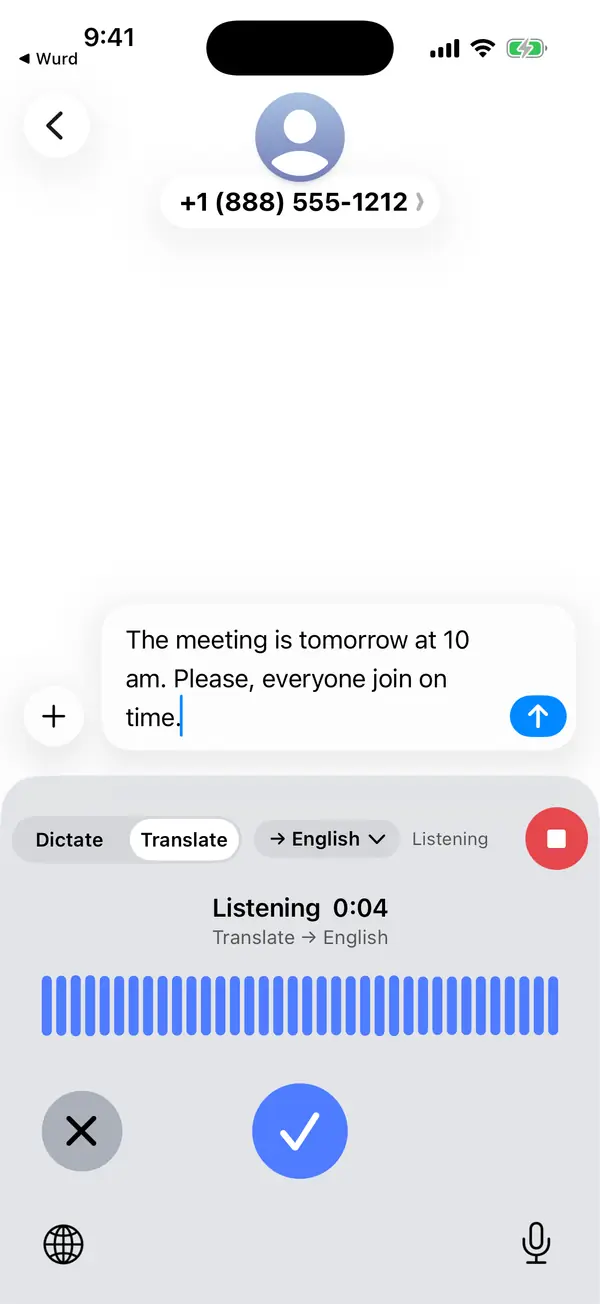
Can I do this on my phone? The iPhone and Android apps include Translate, and they are in private beta. They aren't in the App Store or on Google Play. On a Mac, hold fn + Control. On Windows, hold Ctrl + Win + Alt.
What happens to my voice? Wurd never stores your audio. See what happens to your voice recordings and the Privacy Policy.
What's the difference between translating my voice and an audio file? This guide covers live speech. Recorded files need separate tools.
Keep reading
- Guides
- Bangla
- Translate
- Mac
How to type Bangla by voice on Mac and Windows
Speak Bangla, Banglish or English and get clean text in any app: setup and tips for Mac and Windows. iPhone and Android are in private beta.
5 min read
- Translate
- Guides
- Mac
Speech to Text Translator: Speak One Language, Send Another
Speak in one language and send text in another, right in the app you're typing in. How Wurd's Translate mode works on Mac, with tips and limits.
7 min read