- Translate
- Guides
- Mac
Speech to Text Translator: Speak One Language, Send Another
Speak in one language and send text in another, right in the app you're typing in. How Wurd's Translate mode works on Mac, with tips and limits.
7 min read
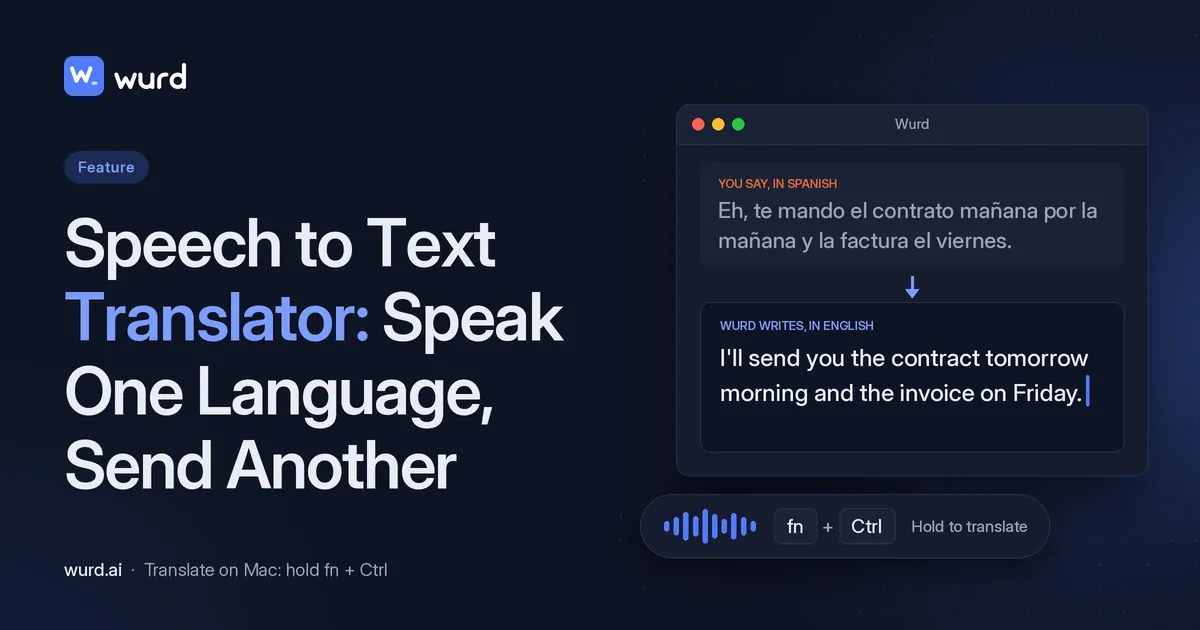
You think in one language, but the message needs to go out in another: a client email in English, a reply to a supplier in Spanish, a note to family in Hindi. Most people type it, paste it into a translator, copy the result and paste it back.
A speech to text translator should skip all of that: you talk in the language that comes naturally, and the translated text appears where you're typing. That's what Translate mode in the Wurd voice keyboard does on a Mac. Below: the kinds of voice to text translator, how Wurd's Translate mode works, and its limits.
What a speech to text translator is (and where most fall short)
"Speech to text translator" covers a few kinds of tool that solve different problems.
Conversation translators vs file transcription vs typing translators
- Conversation translators (what most people mean by "voice translator" or a voice translation app) translate between two people talking, for travel and face-to-face chats.
- File tools turn a recording, such as an MP3, into a translated transcript.
- A typing translator is a voice to text translator for writing: it turns your speech into translated text inside the app you're writing in. This is where Wurd sits.
The copy-paste problem
When your translator lives in a separate app or tab, writing a message means: open the translator, speak, copy, switch apps, paste, fix the formatting, repeat. A typing translator removes the middle steps, so you speak and translate in one go. As Wurd's site puts it: "No translator tab, no copy and paste."
How Wurd's Translate mode works
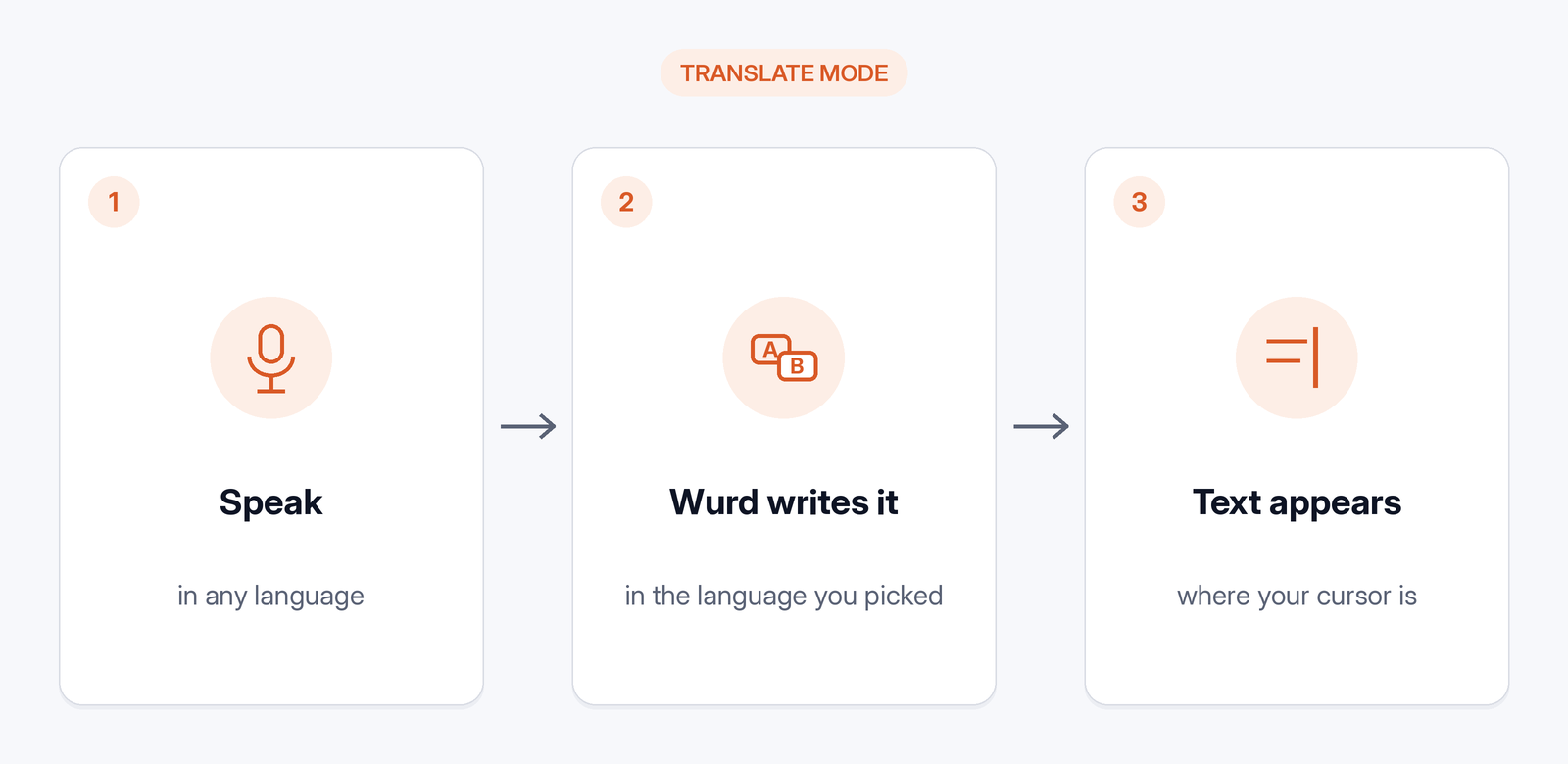
Wurd is a voice keyboard: hold a key, speak, let go, and clean, punctuated text appears where your cursor is. It has two modes, Dictate and Translate.
Dictate vs Translate
- Dictate writes in the language you spoke.
- Translate writes in the language you pick, whatever you speak.
You don't tell Wurd which language you're speaking; it works that out by itself.
On Mac: hold fn + ⌃, speak, let go
On a Mac, Wurd lives in the menu bar. The shortcuts are:
- Hold fn to dictate. Let go to paste.
- Hold fn + ⌃ (Control) to speak in any language and paste it translated.
- Press fn + Space for hands-free dictation: press once to start, again to finish.
To translate: click into the box you're writing in, hold fn + ⌃, say your message, and let go. The translation is pasted where your cursor is, and your clipboard is put back the way it was. It works anywhere you can paste: email, chat, documents, the browser, code editors and terminals.
Choosing your output language
You pick the output language in the Wurd app. A few tips:
- Set the output language before you start talking, so the first message comes out in the right language.
- Correct yourself out loud instead of starting over; Wurd keeps your "no, I mean…" corrections.
- Glance at names and numbers before you send.
Written naturally, not word for word
A word-for-word translation tends to read like one. Wurd's translation is "written naturally rather than word for word," so the result should read like something a person wrote.
Here's the kind of thing you might say in Translate mode:
| You say | Wurd writes |
|---|---|
| Spanish: "Eh, te mando el contrato mañana por la mañana y la factura el viernes." | [CAPTURE NEEDED: real Wurd output for Spanish to English] |
| English: "Can we move the call to Monday morning?" | [CAPTURE NEEDED: real Wurd output for English to Spanish] |
| Bangla: "উম, আপনার অর্ডারটা কাল শিপ হবে, ট্র্যাকিং নম্বরটা আমি পরে পাঠিয়ে দেব।" | [CAPTURE NEEDED: real Wurd output for Bangla to English] |

Built-in guardrails: no added words, numbers checked
A wrong date or a price off by a digit matters more when the message is in a language you read slowly. Wurd has three guardrails built in.
"It never adds words"
Wurd takes out the ums, keeps your "no, I mean…" corrections and fixes punctuation. It doesn't add greetings, sign-offs or ideas you didn't say. If it can't make out what you said, it writes nothing and tells you why.
"It checks every number"
Prices, phone numbers, dates and order IDs are compared with what you said, in any script's digits. If one doesn't match, you get your own words back with a warning, never a wrong figure.
"It writes, it doesn't answer"
Dictate a question and Wurd writes the question down. It never replies to it or follows instructions hidden in your speech.
Real-world uses
On a Mac, Translate helps wherever you write for readers of another language:
- Client and supplier emails. Talk through the update in Spanish, Hindi or Arabic, and send it in English, or the other way round.
- Support replies. Answer a customer in their language without switching tools.
- Messages to family and friends. Write to relatives in French, Chinese or Bangla even when typing in that script is slow for you.
- Team chat. Drop a translated reply into a chat window or browser tab, or anywhere else your cursor is.
Which languages can you translate into?
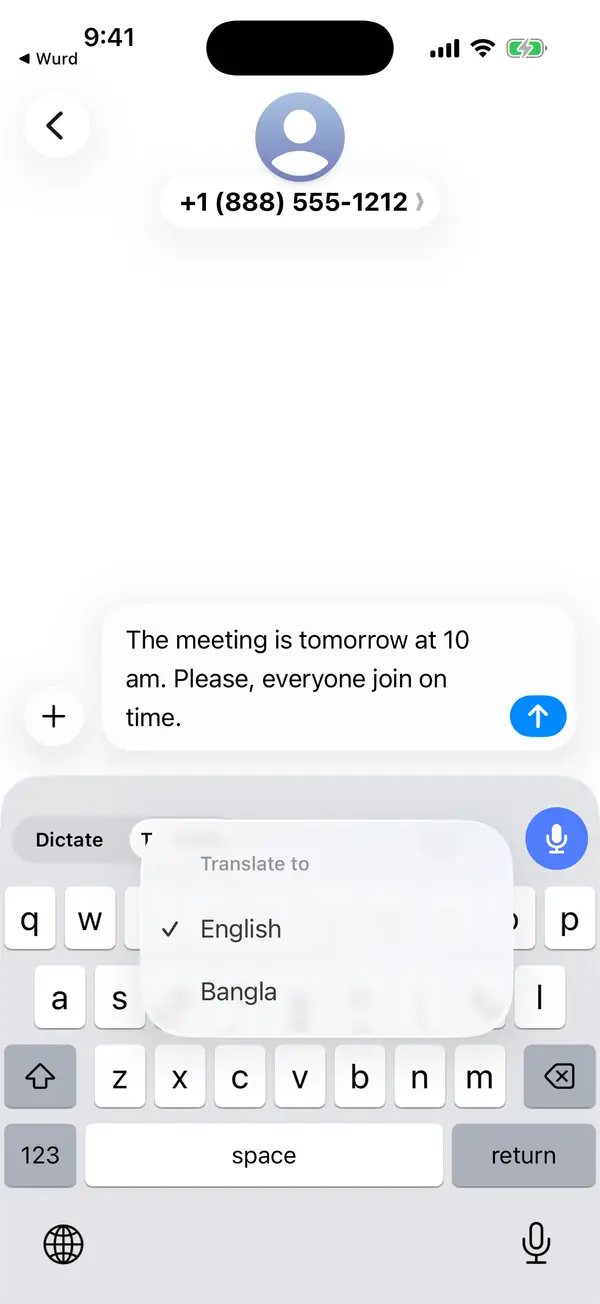
On a Mac, Translate takes speech in any language and writes it in the language you pick, for example Spanish, Arabic, Hindi or Chinese. There's no published full list, so test your own language pair during the free trial.
Limits to know
- Wurd is in beta and needs an internet connection; there's no offline mode.
- It can make mistakes. Wurd's Terms say it "can mishear words, mistranslate, or punctuate wrongly." Read what Wurd writes before you send it, especially for medical, legal, financial or safety-critical messages.
- On a Mac, hold fn + ⌃ to translate. The Wurd apps are available on Mac and Windows. Wurd's site documents Windows dictation as hold Ctrl + Win, and it doesn't publish a Windows shortcut for Translate. The Windows app isn't code-signed, so Windows SmartScreen shows "Windows protected your PC" once: click More info, then Run anyway. The iPhone and Android apps are in private beta.
Privacy when you translate by voice
Wurd never stores your audio. Here's what happens when you speak:
- Audio goes to its speech-to-text provider (ElevenLabs) to be written down.
- Wurd deletes each transcript at the speech provider right after the dictation, and the AI step that cleans up and translates the text runs only on zero-data-retention endpoints.
Read how Wurd handles your voice, or the full Wurd privacy policy, which names the providers Wurd uses.
The free plan
Wurd's free plan, with Translate included, gives you 2,000 words a week. Every new account starts with 14 days of Pro, up to 30,000 words, with no card needed.
Paid plans aren't open, and nobody is charged. Pro is planned at $12 a month (or $96 a year), and prices may change before launch.
FAQ
Can I speak in one language and type in another?
Yes. In Wurd's Translate mode on a Mac, you hold fn + ⌃, speak in your language, and let go. The text is pasted where your cursor is, in the language you picked. That's speak and translate in one step.
Is there a speech to text translator that works in any app?
On a Mac, Wurd's Translate mode lets you translate speech to text inside any app where you can paste. You don't need a separate translator tab.
How can I translate from voice to text?
For live conversations, use a conversation translator; for recordings, a file tool. To write messages, use a translate voice to text app that types for you, like Wurd on a Mac.
Does Wurd translate word for word?
No. Translation is written naturally. Wurd drops filler but doesn't add greetings, sign-offs or ideas you didn't say.
Which languages can Wurd translate into?
On a Mac, Wurd is built to translate from any language into English, or from any language into another. Examples include English, Spanish, Arabic, Hindi, Chinese, French and Bangla. There's no published full list.
Does Wurd store my audio?
Wurd never stores your audio, and it deletes the transcript at its speech provider right after each dictation. See the Wurd privacy policy.
Does it work offline?
No. If the connection drops, your recording stays on your device until the text arrives (24 hours at most), and you can press Retry without speaking again.
Is it free? Is there a free app that transcribes speech to text?
Wurd has a free plan with 2,000 words a week that includes Dictate and Translate. New accounts start with 14 days of Pro. Paid plans aren't open; Pro is planned at $12 a month, and that price may change before launch.
Can I use it on my phone?
No. Wurd is available on Mac and Windows. The iPhone and Android apps are in private beta.
More answers are in the Wurd FAQ.
Keep reading
- Translate
- Guides
- Mac
How to Translate Your Voice to English Text (Mac Guide)
Speak in any language and get English text where you type. Step-by-step: translate your voice to English with Google Translate or in one step on a Mac.
8 min read
- Guides
- Bangla
- Translate
- Mac
How to type Bangla by voice on Mac, Windows and your phone
Speak Bangla, Banglish or English and get clean text in any app, or speak Bangla and get English: setup and tips for Mac, Windows, iPhone and Android.
5 min read