- Guides
- Bangla
- Translate
- Mac
How to type Bangla by voice on Mac, Windows and your phone
Speak Bangla, Banglish or English and get clean text in any app, or speak Bangla and get English: setup and tips for Mac, Windows, iPhone and Android.
5 min read
Typing Bangla usually means a separate keyboard layout, and switching back every time an English word comes up. With Wurd you can say it instead. Hold a key or tap the mic, speak the way you normally do, and the text appears where your cursor is.
This guide covers what Wurd writes when you speak Bangla, how to set it up on each device, and a few habits that give you cleaner text.
What Wurd writes when you speak Bangla
Wurd has two modes. Dictate writes what you said, in the language you said it. Translate writes it in another language, in the same step.
| You say | Mode | Wurd writes |
|---|---|---|
| Bangla | Dictate | Bangla, in Bangla script |
| Bangla with English words mixed in | Dictate | The same mix, with the English words in English letters |
| Bangla | Translate → English | Natural English, not word for word |
| English | Translate → Bangla | Bangla |
You don’t need to tell Wurd which language you’re using. It recognizes the language by itself, even when you switch in the middle of a sentence.
Bangla and English in one sentence
When you mix the two, Wurd keeps each word in the language you said it in. Say this, “umm” and all:
umm na re, kal ami office e ashte parbo na. boss ke bolish meeting ta char tay korte
Wurd writes:
না রে, কাল আমি office-এ আসতে পারব না। Boss-কে বলিস meeting-টা চারটায় করতে।
The filler is gone, the Bangla is in Bangla script, and office, boss and meeting stay in English letters.
Prefer everything in Bangla script? Change the mixed-language option in Settings, in the app or in the web portal. Then “আমি office-এ যাব” becomes “আমি অফিসে যাব”.
Bangla to English in one step
Translate is for the times you think in Bangla but need to send English: to a client, a colleague, a form. Switch to Translate and say:
আমি ফাইলটা আজ রাত দশটার মধ্যে পাঠিয়ে দিচ্ছি, আর ইনভয়েসটা কাল পাঠাব।
Wurd writes:
I’ll send the file by 10 tonight, and the invoice tomorrow.
No translator tab, no copy and paste. Translate takes speech in any language and writes it in the language you pick, for example English, Spanish, Arabic, Bangla, Hindi or Chinese. This guide uses Bangla and English. It’s part of the Free plan (2,000 words a week), and new accounts start with a 14-day Pro trial.

On a Mac
- Download Wurd from wurd.ai (macOS 12 or later). Open the file and drag Wurd to Applications.
- Open Wurd and sign in. It opens a page in your browser where you approve this computer.
- Allow the microphone, then turn on Wurd in System Settings → Privacy & Security → Accessibility. Wurd needs this to notice the hotkey and paste the text.
- Pick the languages you speak (Bangla and English) and the language Translate writes in.
Then, in any app:
| Keys | What happens |
|---|---|
| Hold fn | Dictate while you hold, paste when you let go |
| Hold fn + ⌃ | Translate while you hold, paste when you let go |
| fn + Space | Hands-free: press once to start, again to finish |
| Esc | Cancel |
After pasting, Wurd puts your clipboard back the way it was. If pressing fn also opens the emoji picker or switches your input source, go to System Settings → Keyboard and set what the fn (globe) key does to “Do Nothing”. Wurd updates itself, so there’s nothing to reinstall later.

On Windows
Download Wurd for Windows from wurd.ai (Windows 10 or 11). The installer isn’t code-signed yet, so Windows SmartScreen asks once before the first install: click More info, check that the app is Wurd, then click Run anyway. Wurd lives in the system tray.
| Keys | What happens |
|---|---|
| Hold Ctrl + Win | Dictate while you hold, paste when you let go |
| Hold Ctrl + Win + Alt | Translate while you hold, paste when you let go |
| Ctrl + Win + Space | Hands-free: press once to start, again to finish |
| Esc | Cancel |
One limit: apps running as administrator can’t receive pasted text. In those, Wurd copies the text instead and tells you, so you can paste it yourself.
On iPhone and Android
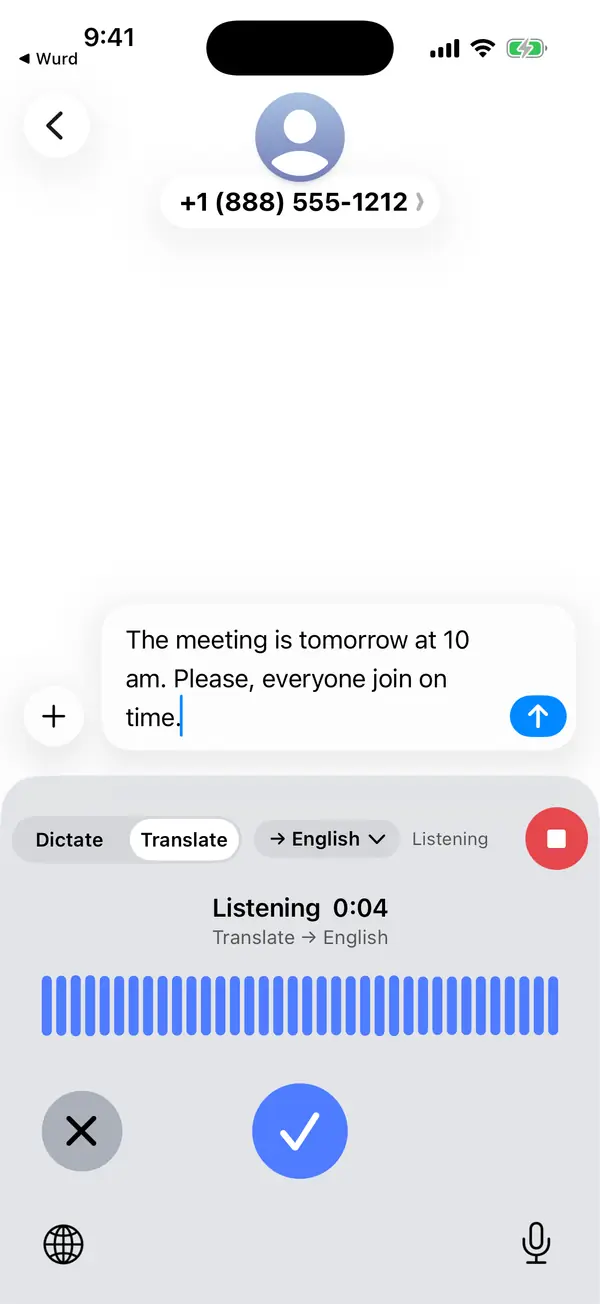
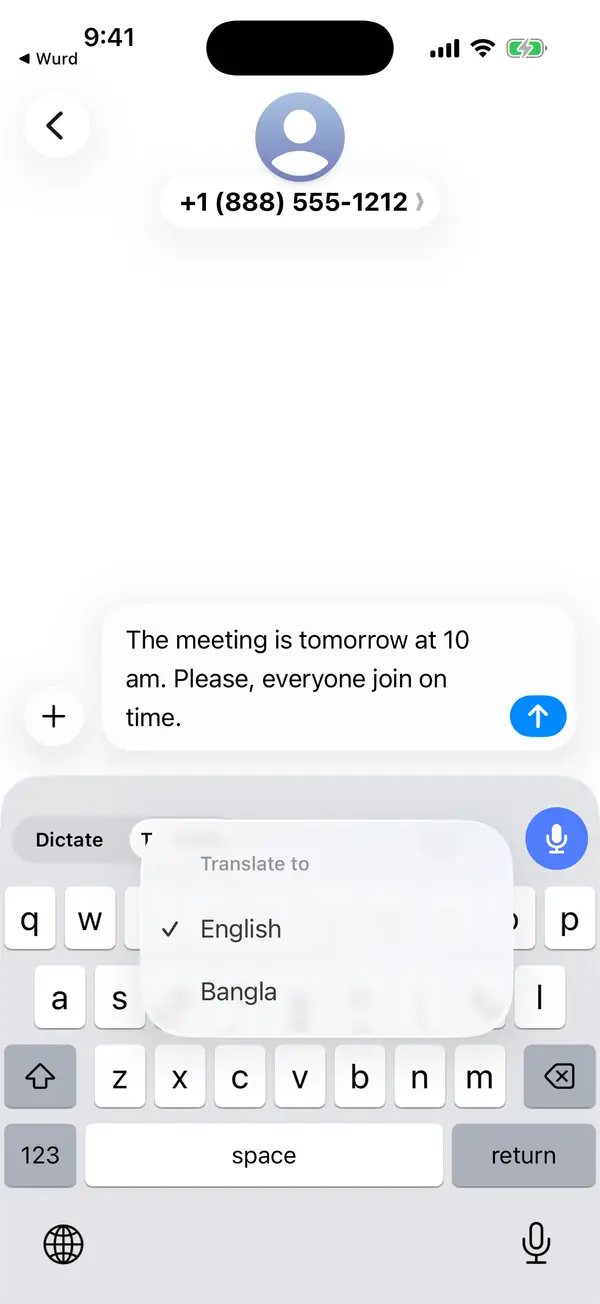
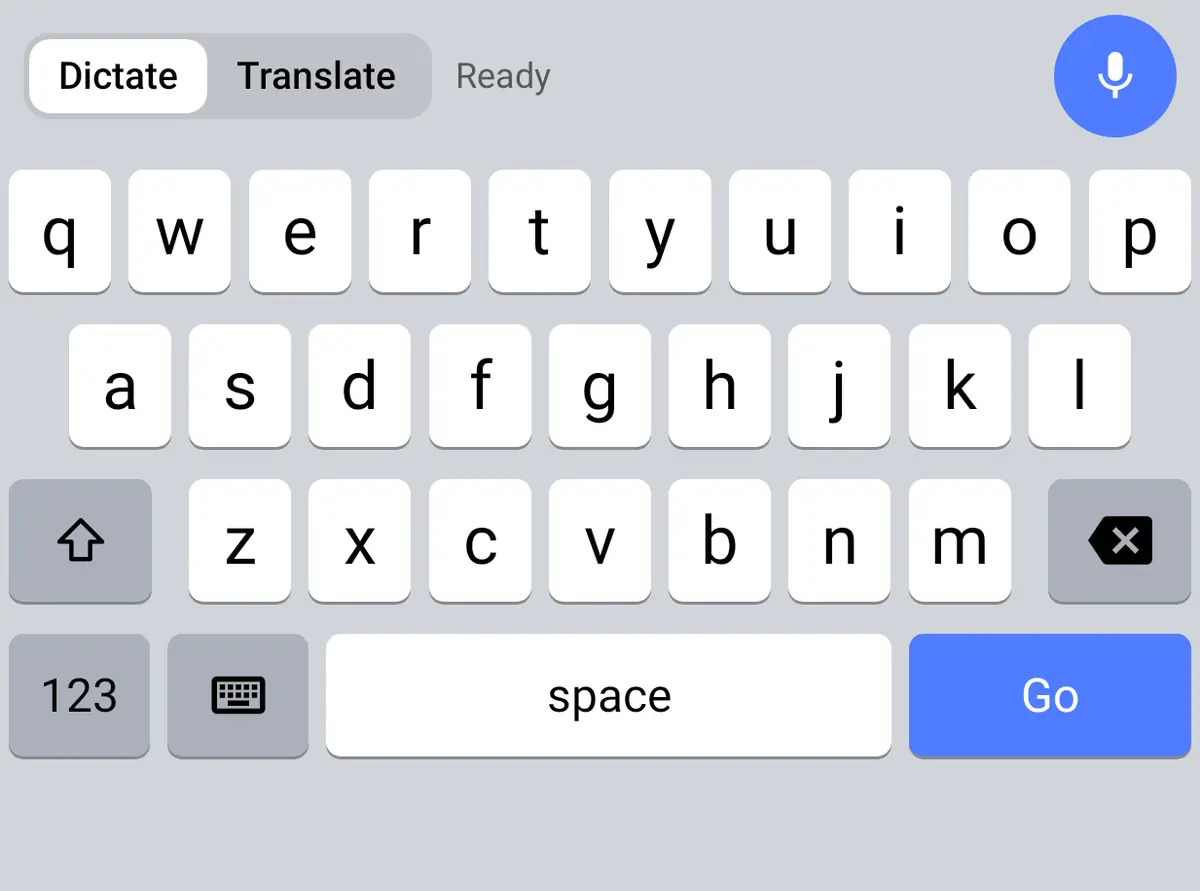
The phone apps are in private beta. Both add a Wurd keyboard: a full keyboard with a mic and a Dictate / Translate switch on top. Pick the language you want in the Translate menu, tap the mic and speak. The menu on this screen shows English and Bangla.
- iPhone: iOS doesn’t let keyboards use the microphone, so the first tap each session opens Wurd for a moment to switch the mic on. After that, it’s tap and speak.
- Android: besides the keyboard, there’s a floating mic bubble that works over any app, even when you use another keyboard.
Tips for cleaner text
- Talk the way you’d talk to a colleague. Wurd drops fillers like “um” and adds the punctuation itself.
- Correct yourself out loud. Say “no, I mean…” or “না, মানে…” and Wurd keeps only the final version. “The total is 4,200, no, sorry, 4,520 dollars, due on the 15th” becomes “The total is $4,520, due on the 15th.”
- Say numbers as you normally would. Wurd checks every number in the result against what you said. If one doesn’t match, you get your own words back with a warning, never a wrong figure.
- Teach it your names. If Wurd misspells a person, a shop or a product, add the word to your dictionary. Wurd listens for those words and spells them your way.
- It writes, it doesn’t answer. Dictate a question and Wurd writes the question down. It never replies to it.
- Stay online. Wurd needs an internet connection. If the connection drops, your recording stays on your device and you can press Retry without speaking again.
Wurd doesn’t store your recordings, and your history stays on your device unless you turn on cloud history. The details are in the Privacy Policy.
Keep reading
- Bangla
- Guides
- Mac
- Windows
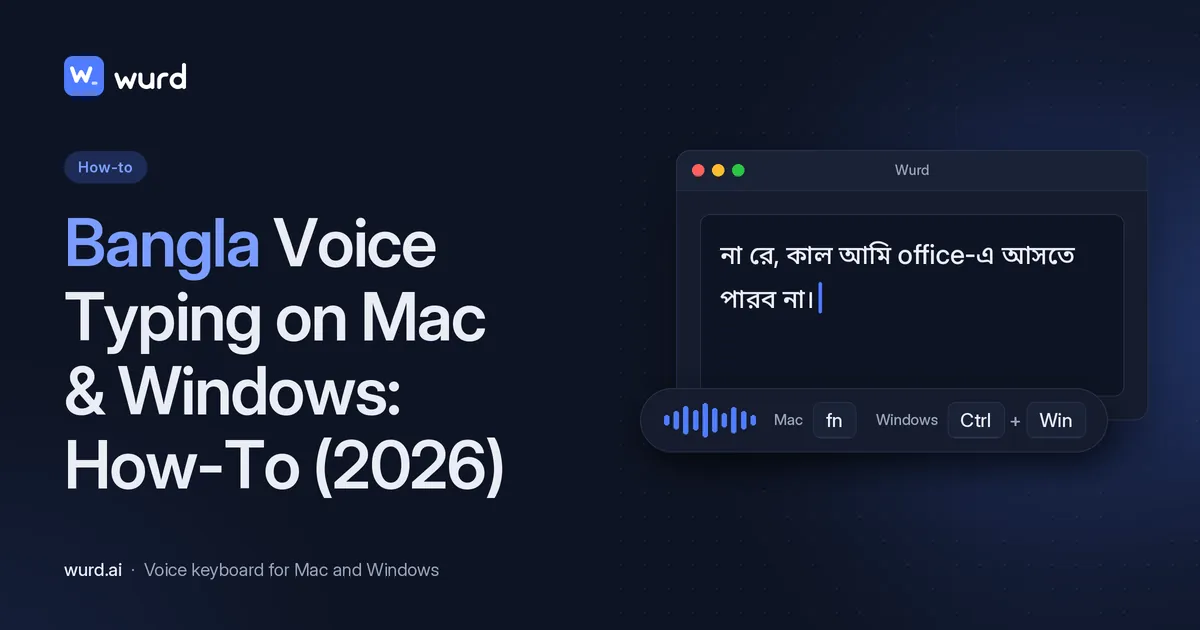
Bangla Voice Typing on Mac & Windows: How-To (2026)
How to do Bangla voice typing on a Mac or Windows PC when built-in dictation has no Bangla: step-by-step setup, Banglish tips and fixes.
12 min read
- Translate
- Guides
- Mac
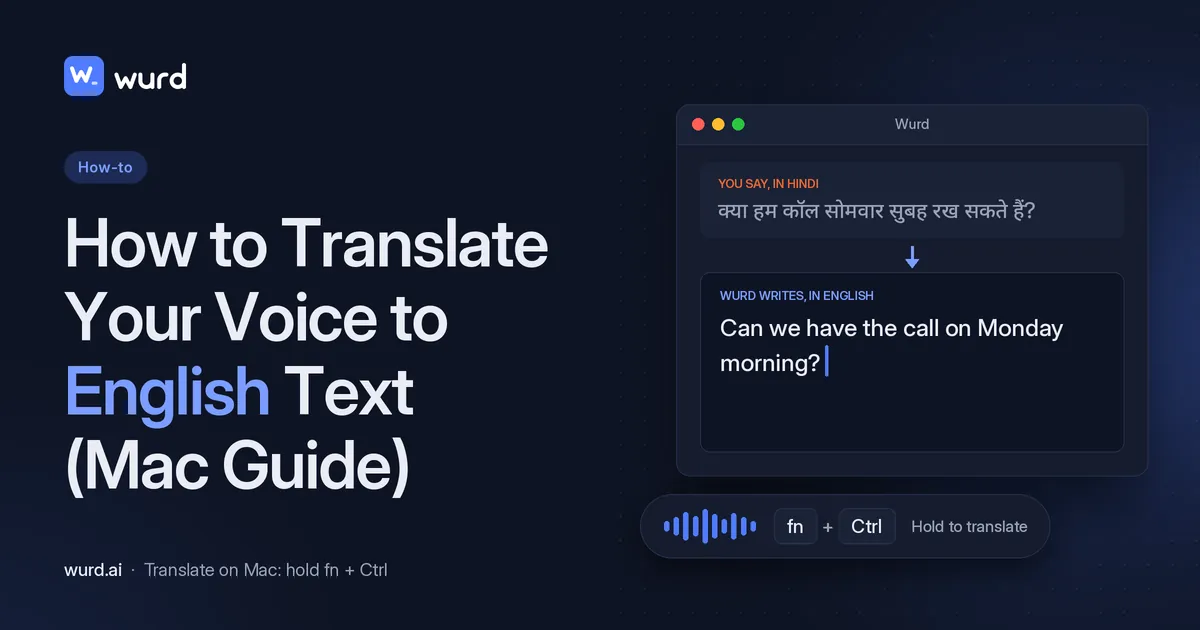
How to Translate Your Voice to English Text (Mac Guide)
Speak in any language and get English text where you type. Step-by-step: translate your voice to English with Google Translate or in one step on a Mac.
8 min read