- Windows
- Guides
How to Voice Type on Windows 10 & 11 (Speech to Text)
Turn on Windows speech to text in seconds: press Win + H, set up voice typing on Windows 10 and 11, fix common issues and know when to use an app instead.
8 min read
Windows speech to text is built in: press one shortcut, speak, and your words appear at your cursor. This guide covers Windows 11 voice typing, Windows 10 dictation, languages, fixes and when an app fits better. Microsoft steps come from Microsoft's official support pages, checked 28 Oct 2026.
Quick answer: press Windows key + H
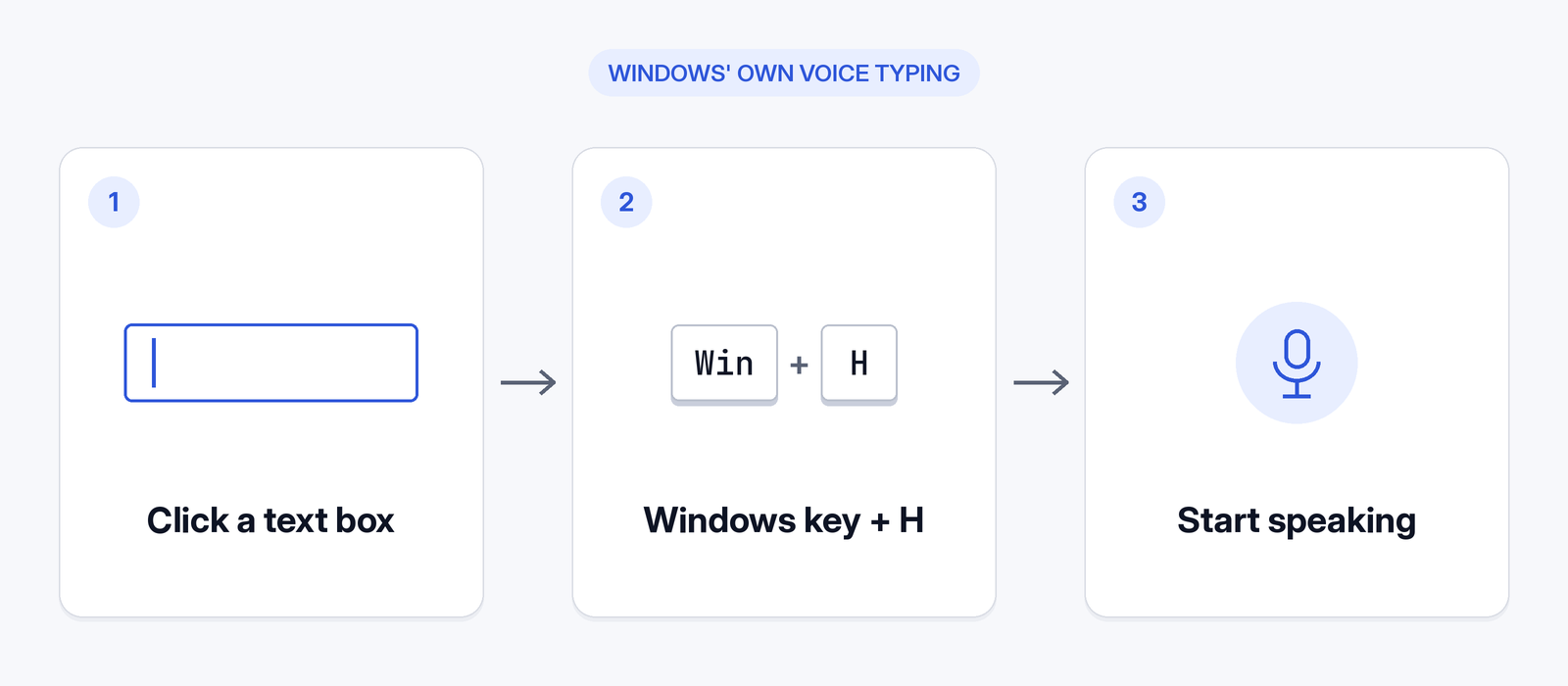
To start Windows speech to text on Windows 10 or 11:
- Click inside a text box, such as an email, a document or a search bar.
- Press Windows key + H. On a touch keyboard, press the Microphone button instead.
- Wait for "Listening...", then speak. Your words appear at the cursor.
That's how to dictate on Windows. On Windows 11, Microsoft says you need an internet connection, a working microphone and your cursor in a text box; Windows 10 dictation also needs internet (Microsoft Support, checked 28 Oct 2026).
What you need before you start
- Windows 10 or Windows 11. The feature is called voice typing on Windows 11 and dictation on Windows 10.
- An internet connection. Microsoft says voice typing "uses online speech recognition, which is powered by Azure Speech services." Windows 10 dictation needs internet too.
- A working microphone.
- A cursor in a text field.
- A supported language (see the language section below).
How to turn on voice typing in Windows 11
Here's how to use voice typing in Windows 11:
- Open the app you want to type in and click where the text should go.
- Press Windows key + H. The voice typing panel opens.
- Wait for the "Listening..." alert. Microsoft says to wait for it before you start speaking.
- Speak normally. You should see your words appear in the text box as you talk.
- Stop by saying "Stop listening" or pressing the microphone button in the panel.
Start and stop voice typing
Start: press Windows key + H, or the Microphone button on the touch keyboard. Stop: say "Stop listening" or press the microphone button. On Windows 10, say "Stop dictation".
Voice typing settings: launcher, automatic punctuation, profanity filter, default mic
To customise speech to text on Windows 11, open the voice typing panel and select the gear icon. Microsoft lists:
- Voice typing launcher
- Automatic punctuation: lets voice typing "automatically insert punctuation based on what you're saying."
- Filter profanity
- Default microphone: picks which mic voice typing uses.
- Wait time before acting
On Copilot+ PCs, Microsoft also lists Fluid dictation, which corrects grammar, punctuation and filler words in English.
Navigate the menu with Win + Alt + H
If you prefer the keyboard, press Windows key + Alt + H to move through the voice typing menu without a mouse.
How to use voice typing (dictation) on Windows 10
Windows dictation on Windows 10 uses the same shortcut.
- Click into a text field.
- Press Windows logo key + H. The dictation toolbar opens.
- Speak. Your words appear at the cursor.
- Say "Stop dictation" when you're done.
Differences on Microsoft's Windows 10 tab:
- It's called dictation and uses a toolbar.
- Dictation commands work in US English only.
- The list of supported languages is shorter than on Windows 11.
- The Windows 10 tab doesn't mention an automatic punctuation setting, so say punctuation out loud.
- The Windows 10 tab doesn't mention Win + Alt + H or Fluid dictation.
Voice typing commands and punctuation
You can speak punctuation and simple edits. Here are common English commands for Windows speech to text, from Microsoft's page:
| Say this | Result |
|---|---|
| "comma" | , |
| "period" or "full stop" | . |
| "question mark" | ? |
| "exclamation mark" | ! |
| "new line" | New line |
| "new paragraph" | New paragraph |
Microsoft's editing commands include "delete that", "select that", "Press Enter" and "Undo that".
On Windows 10, say the character name (for example "comma" or "period"), and say "start spelling" to spell out letters and symbols. For the full list of commands in every supported language, see Microsoft's voice typing page.
How to voice type in another language on Windows
Microsoft says that to switch voice typing languages, "you'll need to change the input language you use". Add the language first, then switch to it:
- Go to Start > Settings > Time & language > Language & region.
- Under Preferred languages, select Add a language and pick the language you want.
- Switch input languages with the language switcher on the taskbar or by pressing Windows key + Spacebar.
- Click into a text box and press Windows key + H again. You should see voice typing write in the new language.
Voice typing only works in languages on Microsoft's supported list. Check the current list on Microsoft's page. If your language isn't listed, voice typing won't recognise it, and a dictation app is the alternative (see below).
Voice typing not working? Fixes
If voice typing is not working on Windows 11 or 10, check these. Each fix uses Microsoft's own requirements and settings.
Windows key + H does nothing or nothing is typed
- Make sure your cursor is inside a text box.
- Wait for "Listening..." before you speak.
It opens but doesn't hear you
- Select the gear icon in the voice typing panel and check Default microphone. Pick the mic you're actually using.
It stops or fails to type
- Check your internet connection.
Wrong words or the wrong language
- Check your input language with the taskbar language switcher or Windows key + Spacebar.
- Confirm your language is on Microsoft's supported list. On Windows 10, commands work in US English only.
No punctuation
- On Windows 11, turn on Automatic punctuation from the gear icon. On Windows 10, say punctuation out loud.
Voice typing vs Voice Access vs Windows Speech Recognition
Voice typing (Win + H) turns speech into text in a text box, which is what this guide covers. Voice access is a different feature. Microsoft says it lets people "control their PC and author text using their voice", for example to "open and switch between apps, browse the web, and read and author emails". Voice access "is available in Windows 11, version 22H2 and later", where it replaces Windows Speech Recognition (WSR). "Older versions of Windows will continue to have WSR available." (Microsoft Support: voice access and Set up voice access, checked 28 Oct 2026)
When to use a dictation app instead
Built-in voice typing comes with Windows and covers everyday dictation in supported languages. An app may suit you better if:
- Your language isn't on Microsoft's list.
- You want to mix languages in one sentence, such as Spanish and English, Hindi and English, or Arabic and French.
- You want filler words removed and punctuation fixed without needing a Copilot+ PC (Microsoft's Fluid dictation requires one).
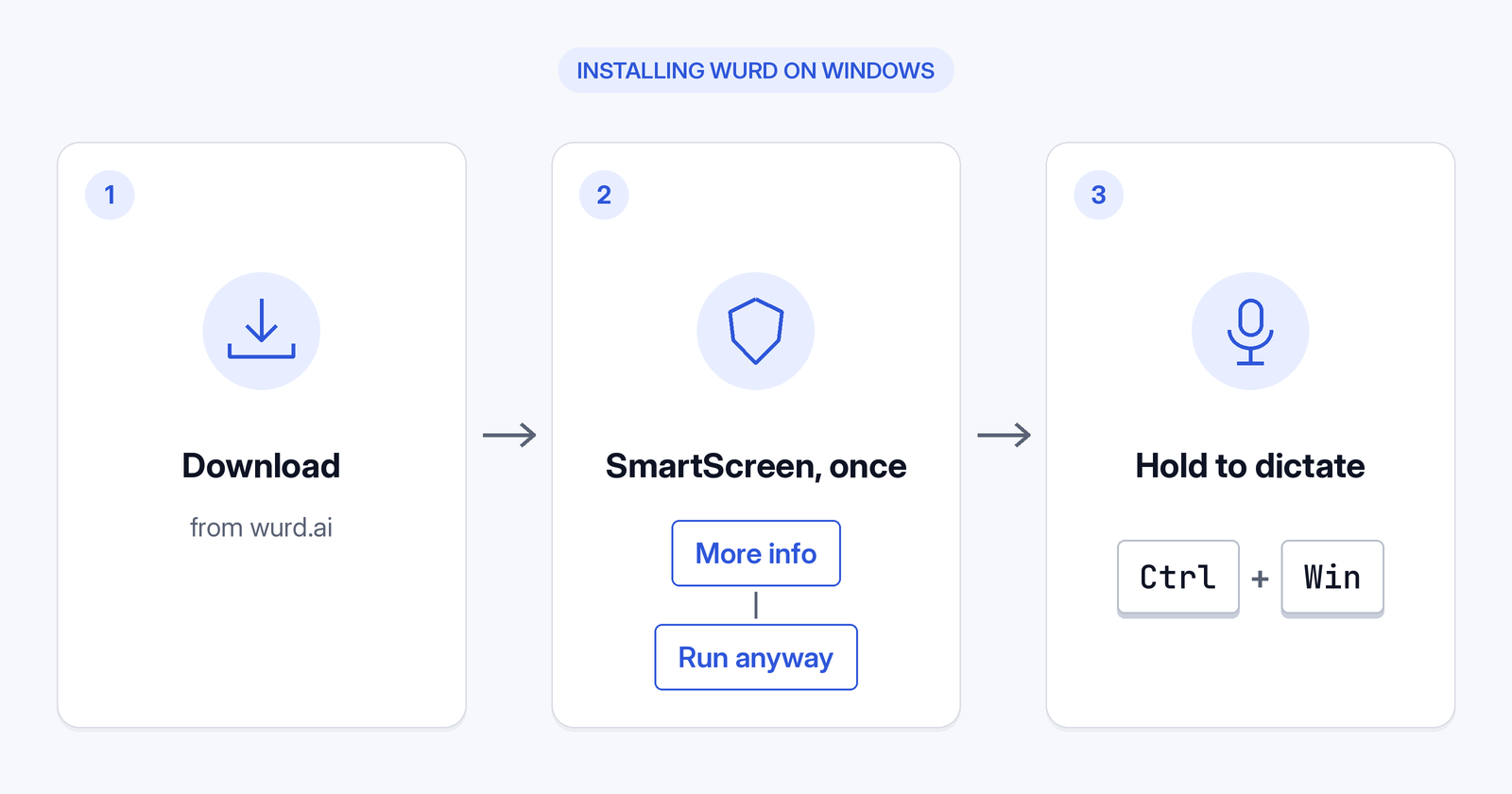
One option is Wurd voice keyboard by 6amTech LTD, which is in beta. It's available on Mac and Windows; iPhone and Android are in private beta. On Windows 10 and 11, Wurd lives in the tray and you hold Ctrl + Win to dictate with Wurd anywhere you can paste. It dictates in any language, even mixed in one sentence, and never adds words you didn't say. On a Mac, hold fn + Control to translate. The site doesn't publish a Windows Translate shortcut.
How to set up Wurd on Windows
- Download Wurd only from wurd.ai. Its installer comes from wurd-downloads.web.app.
- Run the installer. It isn't code-signed yet, so SmartScreen shows "Windows protected your PC". Wurd says you'll see it once. Select More info, then Run anyway. If you don't see Run anyway, Smart App Control (on new Windows 11 installs) or a work policy may be blocking unsigned apps (Microsoft Learn; Microsoft Support, checked 28 Oct 2026). Keep these protections on and email support@wurd.ai.
- Sign in with Google or Apple and allow microphone access.
- Click into a text box, hold Ctrl + Win, speak, let go. Clean text appears at your cursor. If an app can't take the text (for example, one running as administrator), Wurd copies it and tells you.
The free plan includes 2,000 words a week. Pro is planned at $12/month; paid plans aren't open yet, and prices and limits may change before launch. Wurd never stores your audio. See how Wurd handles your recordings, or read the full privacy policy.
FAQ
Does Windows 11 have built-in voice to text?
Yes. Press Windows key + H in a text box. You need internet and a working microphone.
Does Windows 10 have voice to text?
Yes, it's called dictation. Press Windows logo key + H and say "Stop dictation" to finish.
What is the shortcut for voice typing on Windows?
The Windows voice typing shortcut is Windows key + H, on Windows 10 and 11.
Why is Windows + H not working?
Common causes: the cursor isn't in a text box, you're offline, the wrong mic is selected, or your language isn't supported. See the fixes above.
Does Windows voice typing work offline?
No. Microsoft says voice typing uses online speech recognition; Windows 10 dictation also needs internet.
Can Windows voice typing add punctuation automatically?
On Windows 11, yes: turn on Automatic punctuation from the gear icon. On Windows 10, say punctuation out loud.
Which languages does Windows voice typing support?
Only the languages on Microsoft's supported list, which is longer on Windows 11 than on Windows 10. Check Microsoft's page for the current list.
What's the difference between voice typing and Voice Access?
Voice typing (Win + H) turns speech into text in a text box. Voice access, available in Windows 11 version 22H2 and later, lets you control your PC and author text using your voice, per Microsoft Support.
Is there a better dictation tool than Windows voice typing?
If your language isn't supported or you mix languages, a dictation app such as Wurd may fit better. See the Wurd FAQ.
Keep reading
- Bangla
- Guides
- Mac
- Windows
Bangla Voice Typing on Mac & Windows: How-To (2026)
How to do Bangla voice typing on a Mac or Windows PC when built-in dictation has no Bangla: step-by-step setup, Banglish tips and fixes.
12 min read
- Windows
- Guides
Best Dictation Software for Windows 10 & 11 (2026)
Compare the best dictation and voice typing software for Windows 10 and 11 in 2026: free vs paid, AI clean-up, privacy, languages and who each app suits.
15 min read