- Guides
- Productivity
- Mac
Voice to Text Email: Dictate Emails & Chats in Any App
Dictate emails and chat replies by voice in any app on Mac or Windows. How to set it up, what to say, and tips to send clean text with fewer fixes.
8 min read
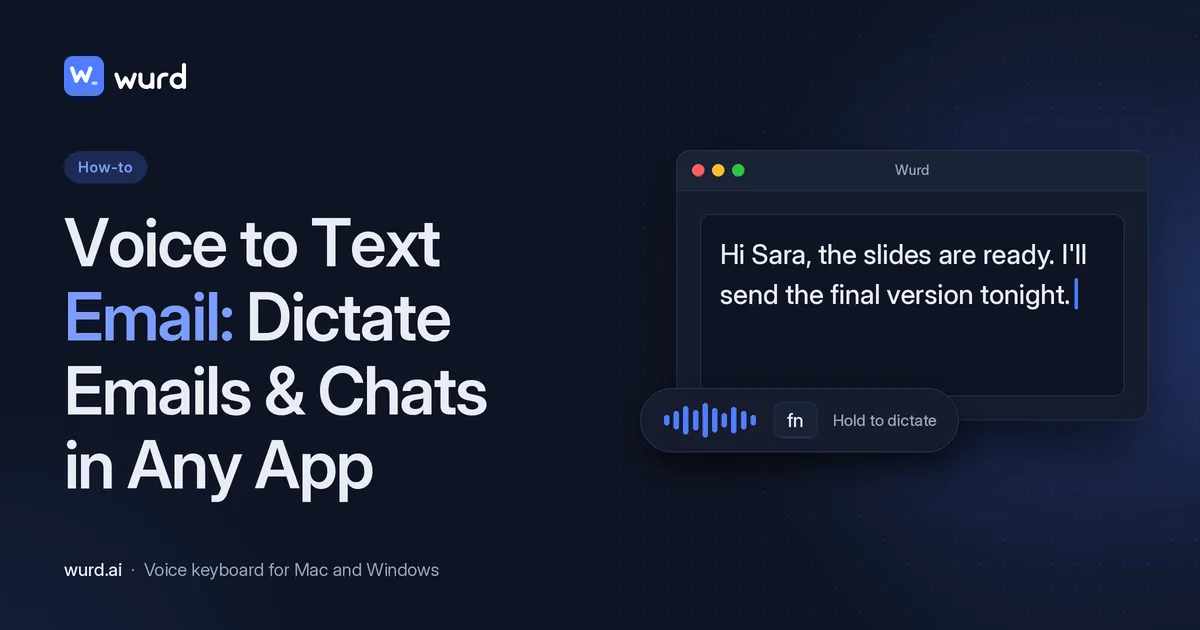
Most of your inbox is short replies, and you probably type every one. Dictating instead is an easy win: "Most people speak about three times faster than they type," as Wurd's site puts it.
This guide covers voice to text email from start to finish: what your email app already offers, where those built-in options stop, and how to dictate emails and chat replies in any app on a Mac or Windows PC with one shortcut.
Why dictate your email and chat replies?
Most messages are short and conversational: confirming a time, answering a question, sending an update. That's writing that's faster said than typed. Writing email by voice also helps when you're tired of the keyboard or the words come more easily out loud.
The catch has always been clean-up. If you have to fix every second word, dictation doesn't save time.
Built-in options and their limits
Your email app may already have a microphone button. Here's what Microsoft and Google document on their own help pages (checked 28 October 2026).
Dictating in Outlook
Microsoft's guide, Dictate your emails in Outlook, covers new Outlook, classic Outlook, Outlook for Mac and Outlook on the web. The steps are similar in each:
- Start a new email or reply, and select the body of the message.
- Go to the Message tab and select Dictate.
- Wait for the button to turn on, then start speaking.
In Outlook for Mac you can also start with Option + F1. Microsoft notes that dictation needs a microphone and a reliable internet connection. For classic Outlook and Outlook for Mac, Microsoft notes that "the dictation feature is only available to Microsoft 365 subscribers." You can say punctuation such as "comma", and pick your spoken language in the Dictate settings.
In short, to dictate an email in Outlook, use the Dictate button and check Microsoft's page for your version's requirements.
Dictating in Gmail
Can I dictate an email in Gmail? Google's help pages describe voice options you can use with Gmail, for example:
- On a computer, in Chrome: Google's Use talk to type in Chrome page describes a feature, powered by Gemini, that turns speech into text "in any input field within Chrome", which suggests it also works in Gmail when you use it in Chrome. Google notes that changing existing text with talk to type isn't available in Google Workspace apps. The first time, you right-click a text box and choose Talk to Type; after that you can use Option + Space on macOS or Ctrl + Space on Windows. You need to be signed in to Chrome, and it works only inside Chrome.
- On an Android phone: Google's Gboard voice typing help says you can open an app like Gmail, tap where you type, tap the microphone and speak. Google notes that "talk-to-text doesn't work with all languages."
So the answer to "how to dictate an email in Gmail" depends on the device you're using.
The catch: one tool per app
Each built-in option covers one place: Outlook's Dictate works in Outlook, Chrome's in Chrome, a phone keyboard on the phone. But your day isn't one app. You answer an email, reply in a team chat, update a document. Switching tools and shortcuts between them is where the time savings leak away.
One shortcut for every app: how Wurd works
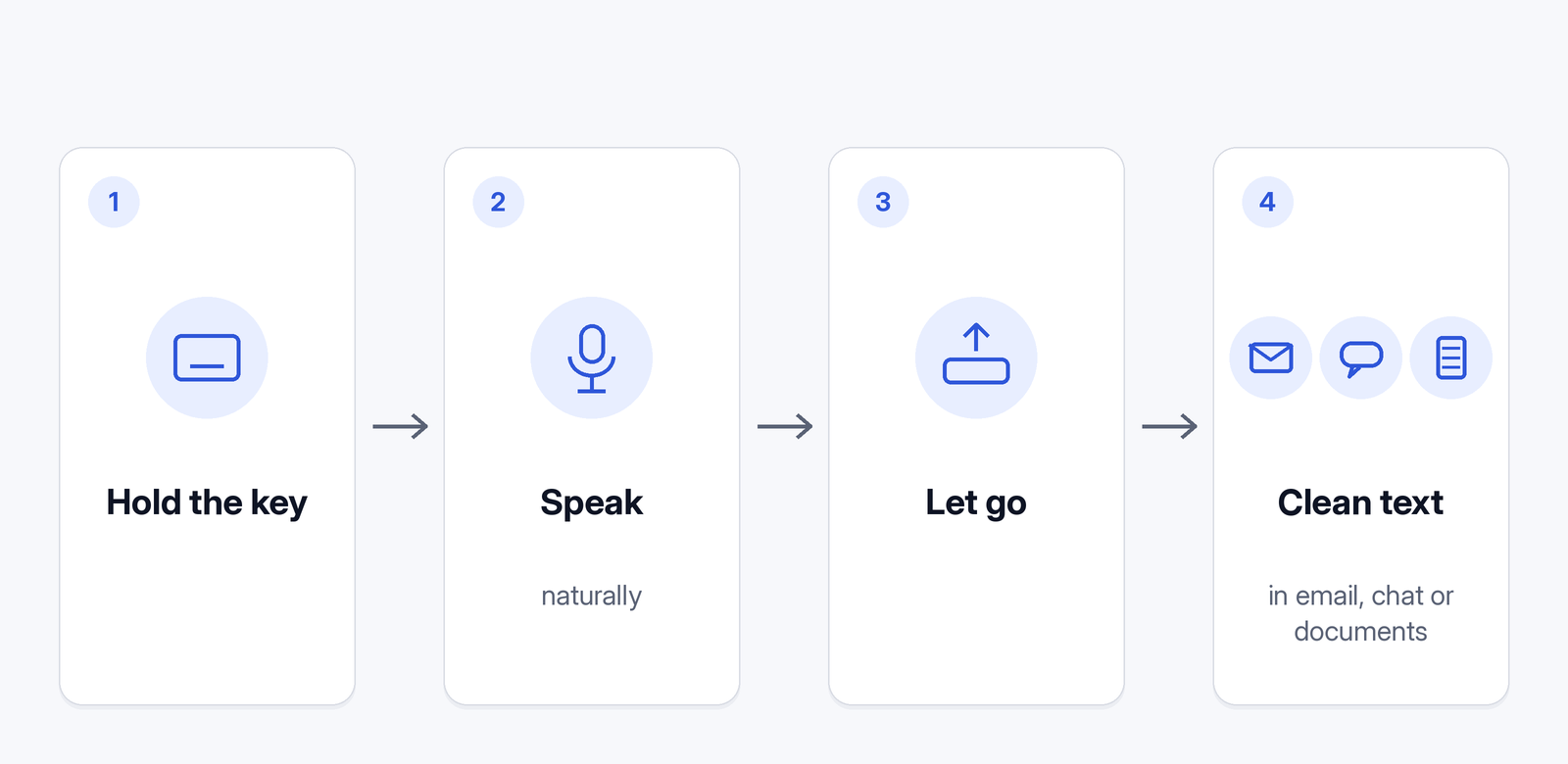
Wurd is a voice keyboard for Mac and Windows that types wherever your cursor is: "mail, chat, documents, the browser, a code editor." The idea is simple: hold a key, speak, let go.
Mac: hold fn
On a Mac (macOS 12 or later), Wurd lives in the menu bar. The first time, allow microphone and Accessibility access when asked.
- Hold fn to dictate. Let go to paste.
- Press fn + Space for hands-free dictation: press once to start, again to finish. Handy for longer emails.
Windows: hold Ctrl + Win
On Windows 10 or 11, Wurd lives in the tray. Hold Ctrl + Win anywhere to dictate. On a Mac, hold fn + ⌃ to translate. The site doesn't publish a Windows Translate shortcut. The installer isn't code-signed, so the first time Windows SmartScreen may show "Windows protected your PC". Click More info, then Run anyway.
It types where your cursor is
Click into the message body, hold the shortcut and talk. When you let go, the text is pasted at your cursor and "your clipboard is put back the way it was." Gmail, Outlook and Slack are just examples; Wurd doesn't plug into any of them. It works anywhere you can paste. If an app can't take the text (for example, a Windows app running as administrator), Wurd copies it and tells you.

Emails vs chat: Wurd fits the format
An email and a chat message shouldn't look the same. In the site's words: "Chat gets one tidy paragraph; email and documents get paragraphs, and a list when you list things out loud."
How does it know which is which? "Wurd only knows the app's name, never what's on your screen." It doesn't read your inbox.
Fewer fixes before you send
No added greetings or sign-offs
"It never adds words." Wurd doesn't add greetings, sign-offs or ideas you didn't say. If you don't say "Best regards," it won't appear, unless it's part of a snippet you saved. If Wurd can't make out what you said, it writes nothing and tells you why. And it writes, it doesn't answer: dictate a question and you get the question.
Numbers checked
Numbers are where email mistakes hurt. Prices, phone numbers, dates and order IDs are compared with what you said, "in any script's digits." If one doesn't match, "you get your own words back with a warning, never a wrong figure."
Corrections kept, ums removed
Wurd keeps your "no, I mean…" corrections and drops the filler. Here's the kind of sentence to try it with:
| You say | Wurd writes (Dictate) |
|---|---|
| "Hi Karim, uh, the total is 4,200, no, sorry, 4,520 dollars, due on the 15th." | [CAPTURE NEEDED: real Wurd output for the Karim invoice example] |
Speed tricks: snippets and dictionary
Two features save the most time on repetitive messages.
- Snippets. "Say a short trigger such as 'my address' and Wurd drops in the full text, exactly as you saved it." Use them for an address, a meeting link, a sign-off or a standard reply. You get 10 snippets on Free and 500 on Pro.
- Dictionary. "Add names, places, brands and jargon to your dictionary… Wurd listens for them and spells them your way." That's 100 words on Free and 2,000 on Pro.
Reply in another language
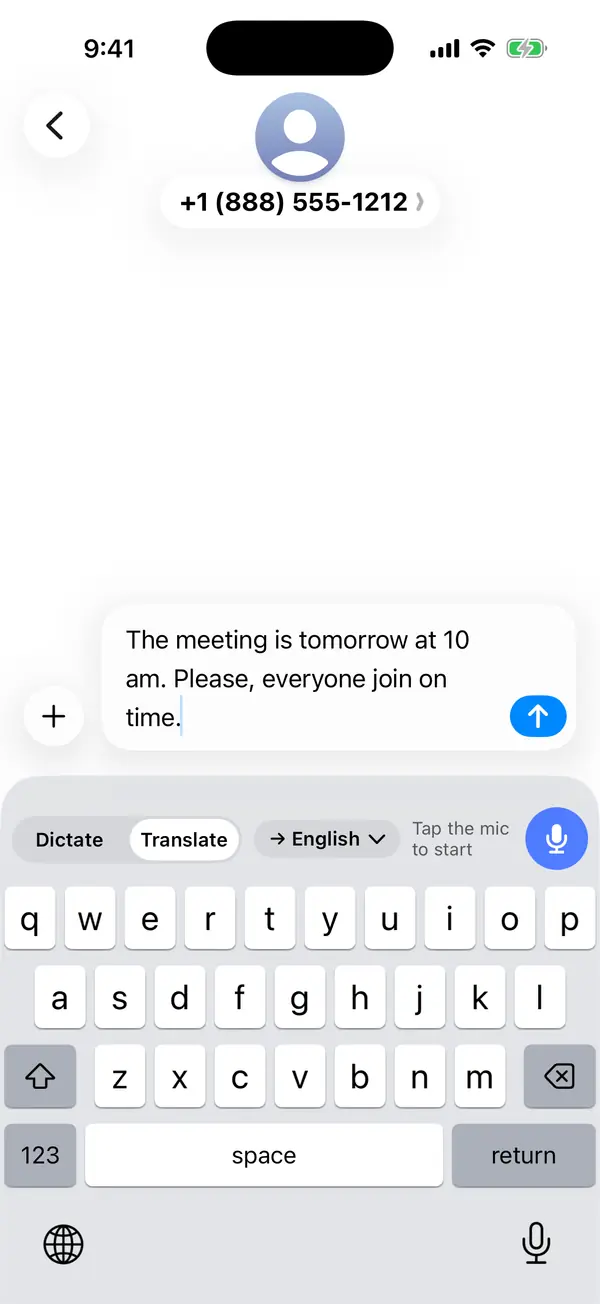
On a Mac, Wurd's Translate mode handles that: hold fn + ⌃ (Control), speak in your language, and the email comes out in the language you picked. Wurd translates from any language into English, or from any language into another. You choose the output language once in the app and can switch it from the keyboard.
For example, you could say this in Spanish and send it in English:
| You say, in Spanish | Wurd writes, in English (Translate) |
|---|---|
| "Eh, te mando el contrato mañana por la mañana y la factura el viernes." | [CAPTURE NEEDED: real Wurd output for the Spanish to English contract example] |
It works with other languages too: speak Hindi and send English, or speak English and reply in Arabic or Chinese. The Translate shortcut Wurd's site publishes is on a Mac (hold fn + ⌃).
Mixed-language dictation for bilingual writers
If you mix languages, you don't have to pick one. In Dictate mode, Wurd "keeps each word in the language you said it in," so a Spanglish note, a Hinglish team update or an email that moves between Arabic and French stays the way you said it.
Tips for dictating a good email
- Click into the right box first. The text goes where your cursor is.
- Know roughly what you want to say. A few seconds of thought gives a tidier message.
- Say lists as lists. "Three things: first…, second…, third…"
- Correct yourself naturally. Say "no, I mean…" and carry on.
- Use snippets for anything you repeat.
- Glance at names and numbers before you send. Wurd checks numbers, but its Terms say it "can mishear words, mistranslate, or punctuate wrongly." A quick read is worth it for important messages.
The free plan
- Mac (macOS 12 or later) and Windows (Windows 10 or 11) are available to download. iPhone and Android are in private beta.
- Free plan (2,000 words a week), with Dictate and Translate.
- 14 days of Pro for every new account, up to 30,000 words, no card needed.
- Paid plans aren't open, and nobody is charged. Pro is planned at $12 a month, and that price may change before launch.
- Wurd is in beta and needs an internet connection; there's no offline mode.
On privacy: Wurd never stores your audio.
FAQ
Can you do voice to text on email?
Yes. Some email apps have their own dictation, such as Outlook's Dictate. A voice keyboard like Wurd works anywhere you can paste on Mac or Windows, including your email app.
Is there a voice to text option in Outlook email?
Yes. Microsoft's Outlook dictation guide says to open a message, go to the Message tab and select Dictate, and that it needs a microphone and a reliable internet connection. For classic Outlook and Outlook for Mac, Microsoft says it's only available to Microsoft 365 subscribers; check the page for your version.
Does Gmail have a speech-to-text feature?
Google's help pages describe voice typing you can use with Gmail: talk to type in Chrome on a computer, and the Gboard mic on an Android phone. Wurd can also type into Gmail in your browser, for example, because it works anywhere you can paste.
Can I dictate an email on Mac or Windows in any app?
With Wurd, yes, anywhere you can paste. Hold fn on a Mac or Ctrl + Win on Windows, and the text is pasted wherever your cursor is: a mail app, webmail, chat, documents. More on where Wurd works.
Will Wurd add a greeting or sign-off?
No. Wurd never adds words you didn't say, including greetings and sign-offs. The one exception is a snippet you saved: say its trigger and Wurd drops in the full text.
Does Wurd read my emails or screen?
No. "Wurd only knows the app's name, never what's on your screen." It uses the app name to choose the format.
Can I dictate an email in one language and send it in another?
Yes. On a Mac, hold fn + ⌃: hold fn + ⌃ and Wurd writes the email in the language you picked.
Does it work on my phone?
No. Wurd is available on Mac and Windows. The iPhone and Android apps are in private beta.
Keep reading
- Mac
- Guides
Apple Dictation Alternative for Mac: When to Switch (2026)
Mac Dictation is free and built in. Here's when an AI dictation app for Mac like Wurd is the better choice, and how they compare on real tasks.
11 min read
- Bangla
- Guides
- Mac
- Windows
Bangla Voice Typing on Mac & Windows: How-To (2026)
How to do Bangla voice typing on a Mac or Windows PC when built-in dictation has no Bangla: step-by-step setup, Banglish tips and fixes.
12 min read