- Guides
- Mac
- Windows
How to Dictate in Spanish, Hindi or Arabic on Mac & PC
Dictate in Spanish, Hindi or Arabic on Mac or Windows: built-in dictation settings step by step, which languages each supports, and a dictation app option.
9 min read
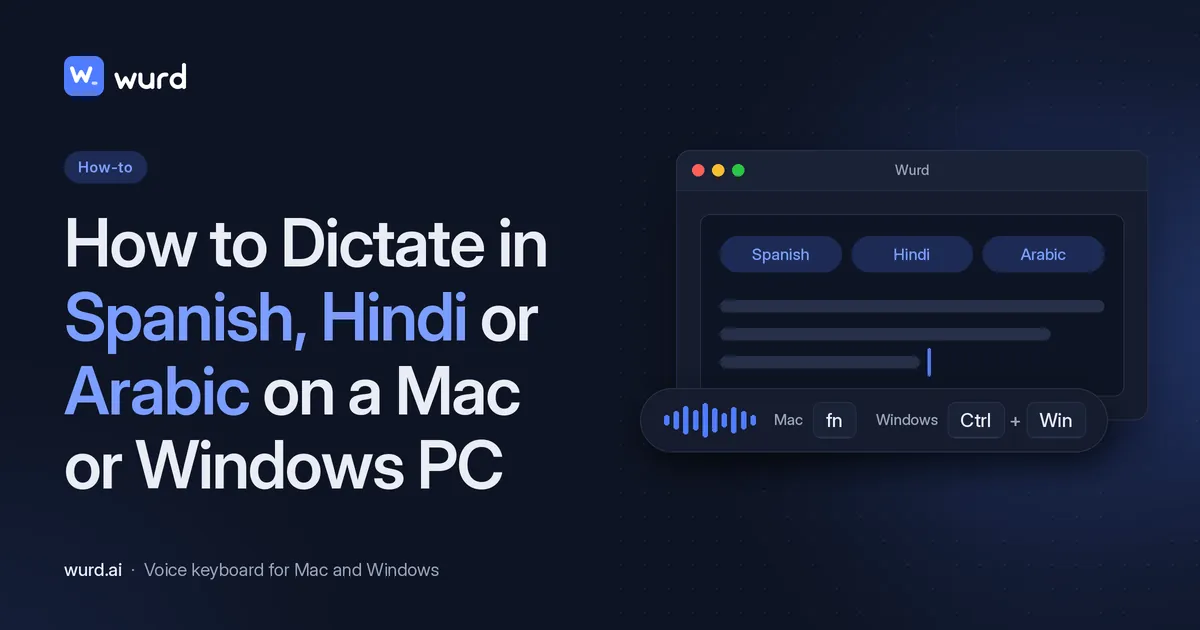
Spanish speech to text, Hindi voice typing or Arabic dictation on your computer: what's built in depends on your system. This guide shows which built-in tool supports which language, how to set each one up, and what to use when yours isn't listed. Apple and Microsoft facts come from their official pages, checked 28 Oct 2026; lists change with updates.
Quick answer
Swipe sideways to see the rest of the table.
| Language | macOS Dictation | Windows 11 voice typing | Windows 10 dictation | Wurd |
|---|---|---|---|---|
| Spanish | ✓ Chile, Colombia, Mexico, Spain, United States | ✓ Mexico, Spain | ✓ Mexico, Spain | ✓ (dictates in any language) |
| Hindi | ✓ India | ✓ | Not listed | ✓ (dictates in any language) |
| Arabic | ✓ Saudi Arabia, United Arab Emirates | Not listed | Not listed | ✓ (dictates in any language) |
Regions are shortened from Apple's and Microsoft's lists, for example "Spanish (Chile)" and "Hindi (India)". Sources: Apple macOS Feature Availability and Microsoft Support, voice typing, both checked 28 Oct 2026.
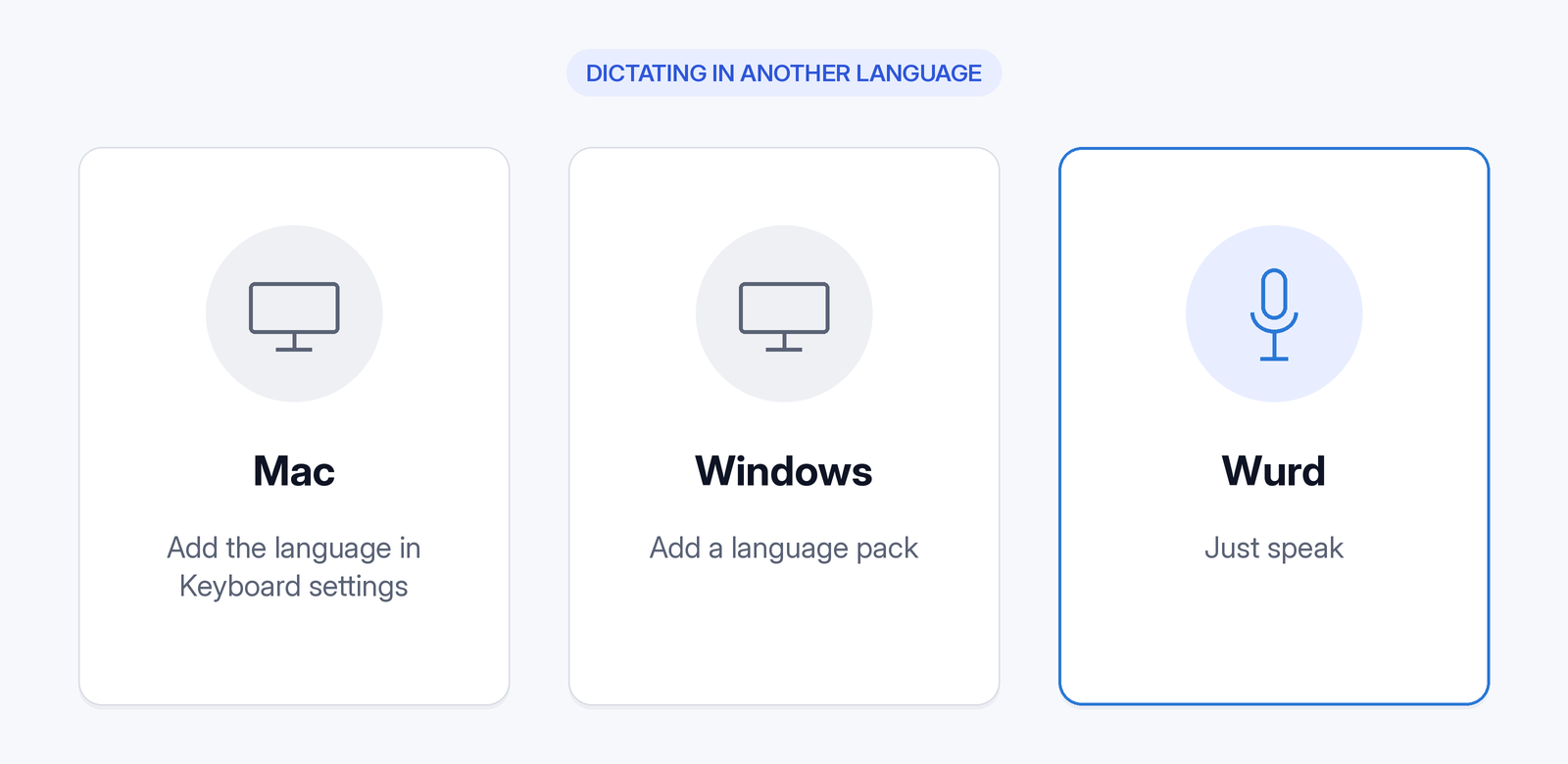
Set up dictation in another language on a Mac
These steps work for Spanish, Hindi and Arabic, from Apple's guide "Dictate messages and documents on Mac" (Apple Support, checked 28 Oct 2026).
Before you start:
- Dictation turned on: Apple menu > System Settings > Keyboard > Dictation.
- A microphone.
- A language and region from Apple's Dictation list.
Add your dictation language
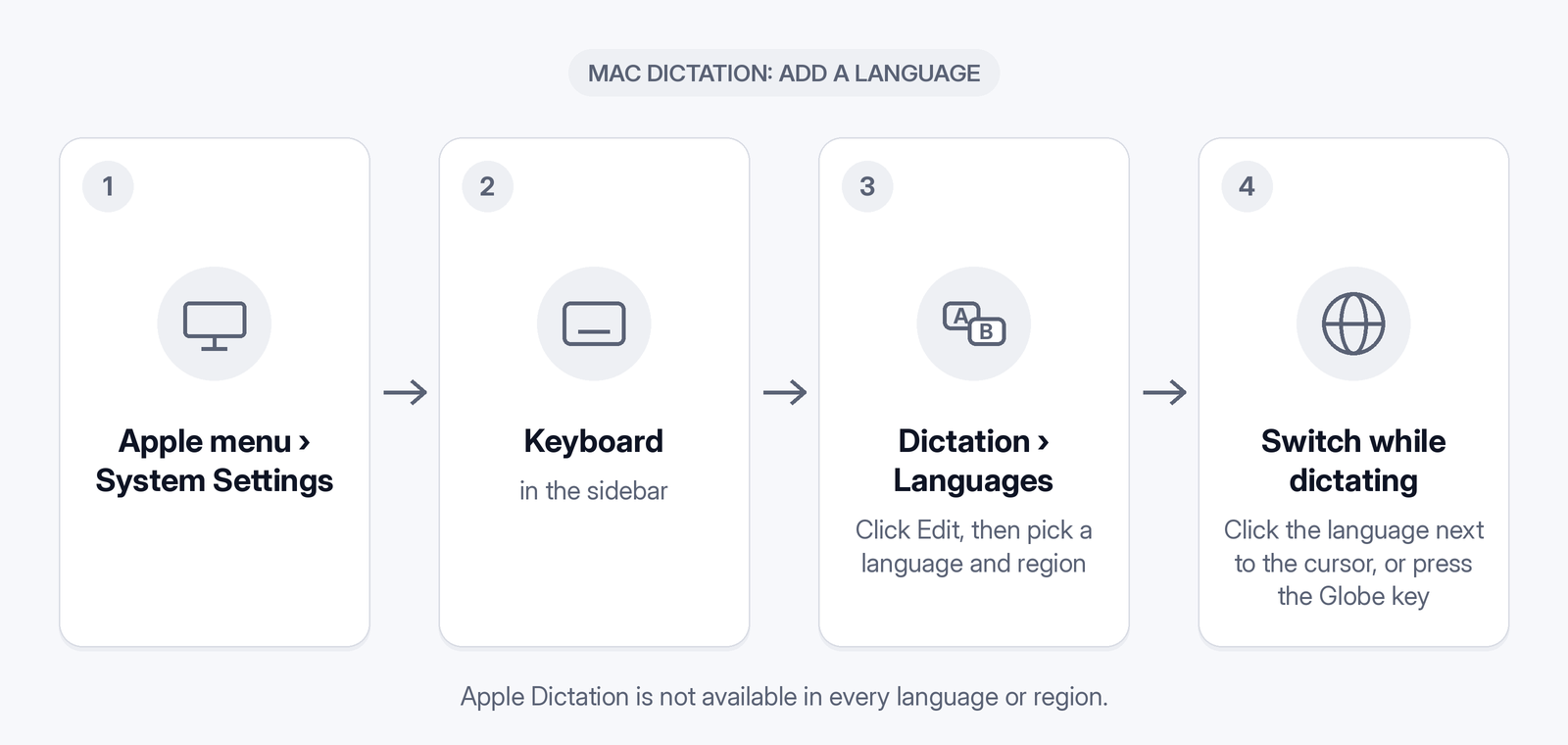
- Choose Apple menu > System Settings, then click Keyboard in the sidebar.
- Go to Dictation and click the Edit button next to Languages.
- Select your language and region, for example Spanish (Mexico), Hindi (India) or Arabic (Saudi Arabia).
These are Apple's steps for current macOS. On macOS 12, Apple says "choose Apple menu > System Preferences, click Keyboard, then click Dictation" (Apple Support, macOS Monterey 12, checked 28 Oct 2026).
If you set up more than one language, Apple says you can switch "by clicking the language next to the cursor", or press the Globe key (if available) and choose the language.
Start dictating
- Click where you want the text.
- Press the Microphone key (if your Mac has one), use the Dictation keyboard shortcut, or choose Edit > Start Dictation.
- Speak. Apple says "Dictation stops automatically when no speech is detected for 30 seconds."
Check your shortcut in Keyboard > Dictation > Shortcut; Apple gives "Press Fn (Function) Key Twice" as one option.
Internet or on-device?
Apple says you can check Keyboard settings to see whether your dictation is processed on your device: look at "the text below Dictation". Apple's on-device list includes Arabic and all five Spanish variants (a speech model download is required).
Set up voice typing in another language on Windows 11 and 10
On Windows 11, Microsoft says "You can use a voice typing language that's different than the one you've chosen for Windows" (Microsoft Support, checked 28 Oct 2026):
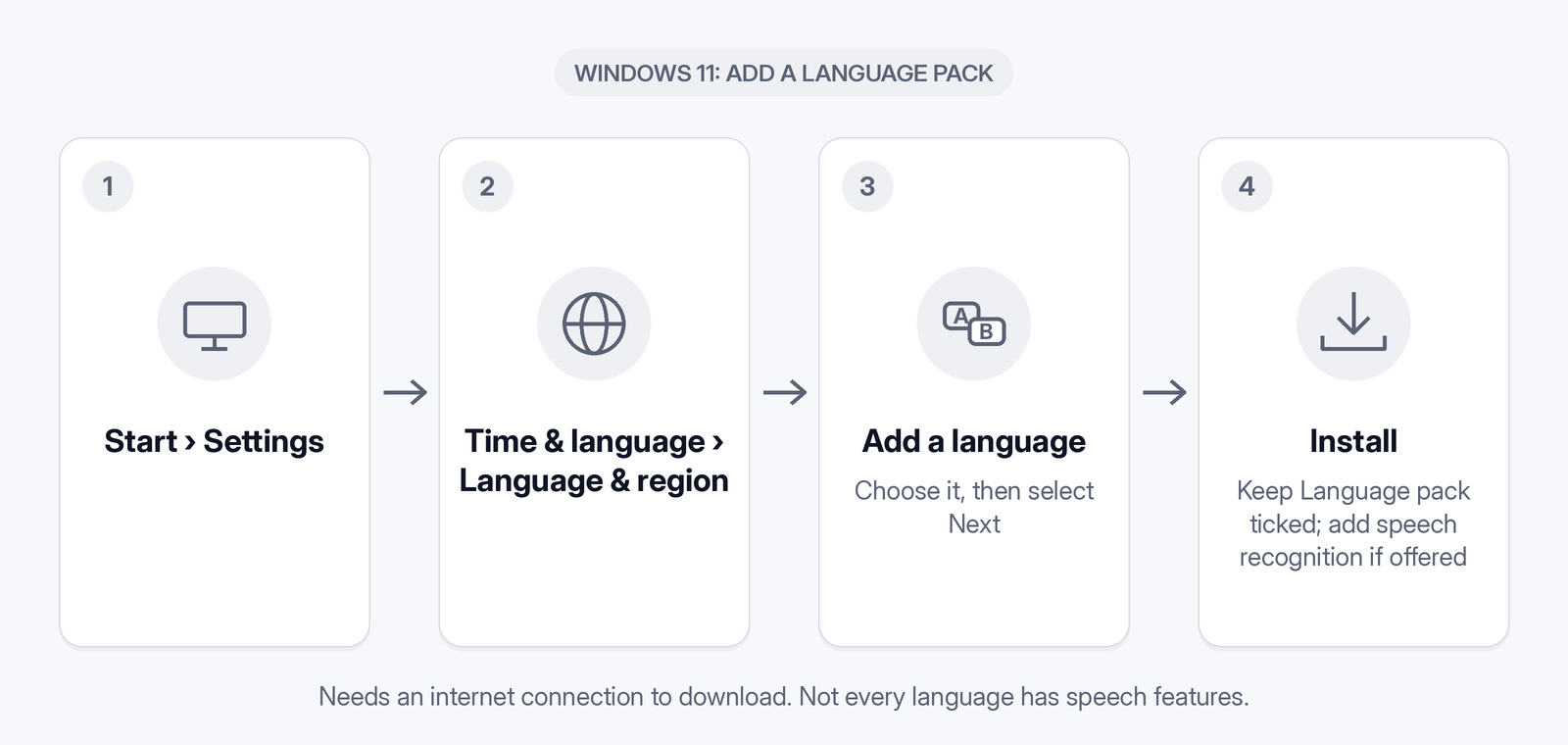
- Select Start > Settings > Time & language > Language & region.
- Find Preferred languages and select Add a language, then add your language.
- Switch to that input language with the language switcher on the taskbar, or press Windows key + Spacebar.
- Click in a text box and press Windows key + H. Wait for "Listening..." and speak.
You need an internet connection, a working microphone and your cursor in a text box. On Windows 10, add a language under Settings > Time & language > Language, then install its language pack. Dictation also starts with Windows logo key + H and needs the internet. Microsoft notes that Windows 10 "Dictation commands are available in US English only" (Microsoft Support, Windows 10 voice typing, checked 28 Oct 2026). Microsoft's page gives language-switching steps for Windows 11 only; for Windows 10, see how to voice type on Windows.
Mixing English with Spanish, Hindi or Arabic? See multilingual speech to text.
How to dictate in Spanish
Mac: for speech to text in Spanish, add the variant closest to how you speak: Spanish (Chile), Spanish (Colombia), Spanish (Mexico), Spanish (Spain) or Spanish (United States). Apple lists automatic punctuation for the Colombia, Mexico, Spain and United States variants, but not Chile. Without it, you'll add punctuation by hand.
Windows 11 and 10: for Spanish dictation, use Spanish (Mexico) or Spanish (Spain), the two listed variants.
Spoken punctuation on Windows 11. Microsoft's Spanish (Mexico) command table includes:
- "coma" for a comma
- "punto" for a full stop
- "signo de apertura de interrogación" for ¿ and "signo de interrogación" for ?
- "signo de apertura de exclamación" for ¡
Accents and ñ: check accented letters (á, é, í, ó, ú) and ñ before you send. If a name or word keeps coming out wrong, correct it by hand, or add it to your Wurd dictionary (see below).
Expected result: your Spanish text appears at the cursor.
How to dictate in Hindi
Mac: for Hindi speech to text, add Hindi (India). Hindi (India) isn't on Apple's on-device or auto-punctuation lists. Check the text below Dictation in Keyboard settings to see how your dictation is processed, and expect to add punctuation by hand.
Windows 11: Hindi is on Microsoft's voice typing list. Add it under Preferred languages, switch with Windows key + Spacebar, then press Windows key + H. Microsoft's Hindi command table includes "पूर्ण विराम" for । and "प्रश्नवाचक चिन्ह" for a question mark.
Windows 10: Hindi isn't on the Windows 10 dictation list. For other languages, Microsoft's Windows 10 page says to "Use voice recognition in Windows". A dictation app is the simpler option (see below).
Expected result: your Hindi text appears in Devanagari script.
How to dictate in Arabic
Mac: add Arabic (Saudi Arabia) or Arabic (United Arab Emirates). Arabic is on Apple's on-device dictation list. It isn't on the auto-punctuation list, so you may need to add punctuation yourself.
Windows 11 and 10: Arabic isn't on Microsoft's lists (checked 28 Oct 2026). For Arabic speech to text on Windows, use an app (see below).
Right-to-left text: Arabic is written right to left. If the text looks out of order, check whether your app has a right-to-left or text direction option.
Expected result: Arabic text appears at your cursor, written right to left.
When built-in dictation isn't enough: Wurd on Mac or Windows
Wurd voice keyboard works like this: you hold a key, speak naturally, let go, and clean text appears where your cursor is. You can dictate in any language with Wurd. As the Wurd FAQ puts it, "Wurd recognises the language by itself, and Dictate writes it back in that language." Wurd is available on Mac and Windows; iPhone and Android are in private beta. See Wurd for Mac and Windows.
Before you start:
- A Mac with macOS 12 or later, or a PC with Windows 10 or 11.
- An internet connection. Wurd needs one and has no offline mode.
- On Mac, Microphone and Accessibility permissions. On Windows, microphone access.
- Download Wurd only from wurd.ai.
On a Mac
- Click where you want the text.
- Hold fn, speak in Spanish, Hindi, Arabic or any language, and let go.
- For longer dictation, press fn + Space once to start hands-free, and again to finish.
Expected result: the text is pasted in the language you spoke, and your clipboard is put back the way it was.
On Windows 10 or 11
- Run the installer from wurd.ai. It isn't code-signed, so SmartScreen shows "Windows protected your PC". Wurd says you'll see it once. Select More info, then Run anyway. If you don't see Run anyway, Smart App Control (on new Windows 11 installs) or a work policy may be blocking unsigned apps (Microsoft Learn; Microsoft Support, checked 28 Oct 2026). Keep these protections on and email support@wurd.ai.
- Click where you want the text.
- Hold Ctrl + Win, speak, and let go.
Expected result: the text is pasted at your cursor. If an app can't take it (for example, one running as administrator), Wurd copies it and tells you.
On Windows, hold Ctrl + Win to dictate and Ctrl + Win + Alt to translate. The iPhone and Android apps are in private beta and include Translate on the Wurd keyboard.
No language switching
You don't pick a language first. You can also "switch languages in the middle of a sentence, the way people really talk": Wurd's Dictate "keeps each word in the language you said it in". The site's examples include Hindi with English, Spanish with English, and Arabic with French.
Names, terms and numbers
Add names and jargon to your dictionary (100 words on Free; 2,000 on Pro, which is planned), and Wurd spells them your way. Wurd checks numbers against what you said, "in any script's digits".
Need English instead? On a Mac, hold fn + ⌃ (Control) to speak in any language and get it pasted translated. See how to translate your voice to English.

Other languages work the same way
The same steps work for any language your system lists. With Wurd, just speak, whether that's Chinese, French or Bangla (see Bangla voice typing on a computer). Read the Wurd FAQ on languages.
Common errors and fixes
- My language isn't in the list. Check Apple's or Microsoft's list. Arabic isn't on Windows' lists, and Hindi isn't on Windows 10's. Use an app such as Wurd.
- The wrong regional variant was picked. On a Mac, click the language next to the cursor or press the Globe key (if available). On Windows 11, press Windows key + Spacebar and check the input language.
- Dictation writes English instead. Switch your dictation or input language before you speak.
- No punctuation appears. Spoken punctuation commands are listed for some languages, for example Spanish (Mexico) and Hindi on Windows 11; Windows 10 commands are US English only. Otherwise, add punctuation by hand.
- Mixed-language sentences come out wrong in built-in dictation. Wurd's Dictate keeps each word in the language you said it in.
- Wurd's connection dropped. Your recording stays on your device, so you can press Retry without speaking again.
For more Windows fixes, see how to voice type on Windows.
FAQ
Can I dictate in Spanish on a Mac? Which variants are there? Yes. Apple's Dictation list includes Spanish (Chile), Spanish (Colombia), Spanish (Mexico), Spanish (Spain) and Spanish (United States) (checked 28 Oct 2026).
Does Windows voice typing support Arabic? Not on Microsoft's voice typing page, checked 28 Oct 2026. A dictation app such as Wurd works on Windows.
Does Windows 10 support Hindi dictation? Hindi isn't on Microsoft's Windows 10 dictation list. Windows 11 voice typing lists Hindi.
Can I mix English and Spanish (or Hindi) in one sentence? With Wurd's Dictate, yes: it keeps each word in the language you said it in. See multilingual speech to text.
Does dictation in other languages work offline? On a Mac, check the text below Dictation in Keyboard settings. Windows voice typing needs the internet, and so does Wurd.
Can I dictate in Spanish and get English text? Yes. Hold fn + ⌃ on a Mac or Ctrl + Win + Alt on Windows. Choose the output language once in the Wurd app. See how to translate your voice to English.
What happens to my voice with Wurd? Wurd never stores your audio. See how Wurd handles your voice and the Privacy Policy.
Keep reading
- Bangla
- Guides
- Mac
- Windows
Bangla Voice Typing on Mac & Windows: How-To (2026)
How to do Bangla voice typing on a Mac or Windows PC when built-in dictation has no Bangla: step-by-step setup, Banglish tips and fixes.
11 min read
- Mac
- Guides
Apple Dictation Alternative for Mac: When to Switch (2026)
Mac Dictation is free and built in. Here's when an AI dictation app for Mac like Wurd is the better choice, and how they compare on real tasks.
11 min read